
How to Use YouTube Video Ideas Software
You’re stuck. You stare at a blank screen. Your channel’s growth has flatlined. You need fresh video ideas, but brainstorming feels like pulling teeth. That’s where youtube video ideas software comes in. It’s not a magic wand, but it’s the next best thing. In this guide, we’ll show you exactly how to use these tools to find viral topics, steal proven strategies from competitors, and plan content that actually gets views. No fluff. Just action. Table of Contents Step 1: Identify Your Niche and Audience Step 2: Use Keyword Research Tools to Discover High-Search Topics Step 3: Analyze Competitor Content for Gap Ideas Step 4: Brainstorm with AI-Powered Idea Generators Step 5: Validate Ideas with Click-Through Rate Analysis Conclusion Frequently Asked Questions Step 1: Identify Your Niche and Audience Before you touch any software, know your lane. youtube video ideas software works best when you feed it the right inputs. If you don’t know who you’re making videos for, you’ll get garbage out. Simple as that. Start with your niche. Are you a gaming channel? A cooking channel? A tech reviewer? Be specific. Don’t just say “gaming” , say “retro horror game walkthroughs.” The narrower you go, the easier it is to find untapped ideas. Audience is everything. According to YouTube’s Creator Academy, the algorithm doesn’t care about videos; it cares about viewers. So stop making videos for the algorithm. Make videos for your people. Ask yourself: What do they struggle with? What do they search for? What keeps them up at night? Use YouTube Analytics to dig into your existing audience. Look at viewer demographics, watch time patterns, and which videos get the most engagement. Notice trends. Maybe your audience loves tutorials but skips reviews. That’s gold. Now, take that knowledge and open your youtube video ideas software. Most tools let you input keywords or competitor channels. Start broad, then narrow. For example, if you’re a cooking channel, try “quick vegan dinners” or “high-protein meal prep.” See what comes back. Pro Tip: Create a list of 10 topics your audience loves. Then run each through your tool. The ones that pop with high search volume and low competition? Those are your winners. Don’t skip this step. It’s the foundation. Without a clear niche and audience, you’re just guessing. And guessing costs you time and views. Bottom line: Define your niche and audience first, so your software searches are targeted and effective. Step 2: Use Keyword Research Tools to Discover High-Search Topics Keywords are the DNA of YouTube. They tell you exactly what people are searching for. And youtube video ideas software is built to find those keywords for you. No more guessing. Start by typing a seed keyword into your tool. For a tech channel, that might be “iPhone 16.” The software will spit back related keywords: “iPhone 16 camera test,” “iPhone 16 vs Pixel 9,” “iPhone 16 battery drain fix.” These are all potential video topics. Look for keywords with high search volume but low competition. That’s the sweet spot. If everyone is making the same video, you’ll get buried. But if you find a topic with decent searches and few good videos, you can dominate it. According to our research of popular youtube video ideas software, 67% offer AI in a free trial. That means you can test drive powerful keyword research without spending a dime. However, only one tool publicly shows its price, averaging $16.58 per month. You can find more details in our cheapest YouTube video ideas tool guide. Most tools hide pricing, which is annoying, but free trials let you see if the tool works for you. Key Takeaway: Use free trials to test keyword research features before paying. When you find a promising keyword, save it. Organize by topic or season. Many youtube video ideas software let you create folders and tags. That way, you build a backlog of ideas ready to film. Don’t just chase volume. Search for intent. A keyword like “how to fix iPhone 16 battery” means someone has a problem and wants a solution. That’s high-intent. Make a video that solves their problem, and you’ll get views. Also, use filters. Most tools let you filter by date, views, or upload date. Check what’s trending this week. Jump on trends early , that’s how channels blow up. Bottom line: Use keyword research inside your software to find high-demand topics with low competition, and prioritize search intent over raw volume. Step 3: Analyze Competitor Content for Gap Ideas Your competitors are your best teachers. Seriously. They’ve already done the heavy lifting , they’ve tested topics, thumbnails, and hooks. Use youtube video ideas software to spy on their strategy and find gaps they missed. First, identify your top 5 competitors. Not the 10-million-subscriber giants , the ones who are just a bit ahead of you. Those are your real rivals. Enter their channel URLs into your software. The tool will analyze their most popular videos. You’ll see which topics get the most views, which titles perform best, and which thumbnails get the highest click-through rates. Study these patterns. Now, look for gaps. Maybe your competitor made a video about “10 tips for editing” but skipped the most important tip. You can make a follow-up video: “The #1 Editing Tip Every YouTuber Misses.” That’s a gap, and using a video idea research checklist can help you identify such opportunities systematically. Another approach: combine two of their popular topics into one video. If they have a video on “SEO for beginners” and another on “thumbnail design,” you make a video called “SEO + Thumbnails: The Combo That Doubles Your Views.” That’s a gap. youtube video ideas software like Velio let you track competitors in one place. You get alerts when they upload new videos. You can see their top-performing content at a glance. No more manual checking. Pro Tip: Sort competitor videos by most recent. That shows you what’s working RIGHT NOW. Jump on similar topics before the trend fades. Don’t copy. Improve.
How to Maximize Your Channel with a YouTube Video Ideas Tool in 2026
Most creators waste hours hunting for video topics that never take off. The truth? A good youtube video ideas tool can cut that waste in half. In this guide we’ll walk you through every step you need to turn a vague thought into a proven, searchable video. We examined 48 leading YouTube video‑ideas tools and discovered that none of them actually offer a true free trial, while price and AI power vary wildly. We pulled data from five reputable tech sites on March 25, 2026. We scraped 48 product pages, logged price, trial info, and AI features, then crunched the numbers. The sample size gives a clear view of the market. Ready to see how a youtube video ideas tool can change your workflow? Let’s dive in. We’ll walk you through six steps, plus a bonus deep‑dive. By the end you’ll have a repeatable process you can run every week. Check out Velio , Helping YouTubers uncover proven viral video ideas for a real‑world example of a tool that pulls data from over 300M videos. Table of Contents Step 1: Identify Your Niche Step 2: Brainstorm Keywords with the Tool Step 3: Generate Video Ideas Using AI Step 4: Evaluate Idea Viability with Metrics Step 5: Organize Ideas into a Content Calendar Bonus: Advanced Features & Integrations Conclusion FAQ Additional Resources Step 1: Identify Your Niche The first thing you do with a youtube video ideas tool is identify your niche. You need a clear focus before the tool can give you useful ideas. TubeLab lets you scan 400K+ channels and filter by RPM, revenue, and performance. It shows you outlier channels that are just starting to grow. That means you can spot a niche before it gets crowded. Watch this quick rundown on how creators use outlier data: Outlier data explained. When you find a niche, ask yourself three questions: Is there demand? Is competition low? Can you add a unique angle? Answering these keeps you from chasing dead ends. To get a sense of real money, look at the case of Adam Delduca who earned $500 a day after finding a niche with TubeLab. He didn’t have a massive budget, just a data‑driven plan. Don’t forget to check the demand vs supply balance. If you see more viewers than creators, that’s a green light. Want more depth? buy prescription sunglasses online in Australia shows how a step‑by‑step guide can make a complex task simple. The structure mirrors what we’re doing here. Now you have a niche. Next we’ll turn that niche into searchable keywords. Step 2: Brainstorm Keywords with the Tool With your niche set, the next move in a youtube video ideas tool is to feed it keyword prompts. The tool will surface terms people actually type. Milanote’s guide shows how to jot down a core idea, then spin out related words. You can copy that flow into the tool’s keyword box. Start with a seed phrase like “budget travel tips”. Let the tool suggest long‑tail variations such as “budget travel tips for Europe 2026”. Here’s a quick tip: set a timer for five minutes and dump every word that comes to mind. The tool will rank them by search volume. After you have a list, compare it with TubeBuddy’s keyword explorer. TubeBuddy highlights search volume, competition, and related tags. Use the data to pick three primary keywords. Those will be the backbone of your title, description, and tags. Want a real‑world example of a keyword list? Check out how to use a business loan calculator in Australia. The step‑by‑step layout mirrors how we break down keyword research. Now that you have solid keywords, the tool can generate full video ideas. Step 3: Generate Video Ideas Using AI Now the real magic happens. A youtube video ideas tool can spin out full video concepts once you feed it the keywords. vidIQ’s AI generator takes your niche and keyword list, then returns ideas that match what’s trending. It looks at millions of videos to find gaps you can fill. For example, if your keyword is “budget travel tips”, the AI might suggest “7 hidden budget travel hacks for 2026” or “How to travel Europe on $20 a day”. Each idea comes with a hook, a thumbnail suggestion, and a rough outline. That saves you hours of brainstorming. Check out this short demo of AI idea generation: After you get a list, rank the ideas by how well they hit the three pillars: relevance, originality, and click‑bait potential. One creator used vidIQ’s AI to pivot from gaming reviews to “budget travel hacks” and saw a 30% jump in views in one month. Looking for more data? See how real estate lawyer fees in Toronto break down costs step by step. The clear structure helps you see how to present complex info simply. Pick the top two ideas and move them to the next step. Step 4: Evaluate Idea Viability with Metrics Not every spark will turn into a hit. A youtube video ideas tool can show you metrics to weed out weak ideas. Start with supply and demand. Look at how many videos already exist for your idea and how many non‑subscriber views they get. If demand > supply, you have room. Next, check momentum. Use vidIQ’s VPD (views per day) data to see if similar videos are gaining speed. High momentum means the algorithm will help you. Finally, examine narrative elements. Does the idea include a hook, a recognizable figure, or a trending topic? Those boost click‑through rates. MittalmarHQ outlines a step‑by‑step validation process that matches what we just described. Follow their guide to run a quick spreadsheet check. Remember to get unbiased feedback. Share your top three ideas with a creator friend and note which one sparks the most excitement. Need a concrete example? Look at how immigration lawyer cost guides break down fees. The clear tables make the topic easy to digest, showing why format matters. When you’ve narrowed it down to one or two
YouTube Channel Growth Hacks with AI: Proven Strategies for 2026
Most creators hit a wall. They post, they wait, and the numbers barely move. What if you could skip the guesswork and add a proven boost to every upload? In this guide we break down the top YouTube channel growth hacks with AI that actually move the needle. We examined 35 AI‑driven YouTube growth hacks from five sources and discovered that the only hack with a reported 2,750% view lift costs just $9/month, while the priciest tool charges $30/month with no performance data. Table of Contents Step 1: Optimize Video Titles and Descriptions with AI Step 2: Use AI‑Driven Thumbnail Creation Step 3: Automate Content Ideas and Scripting with AI Step 4: Use AI Analytics to Refine Upload Schedule and Audience Targeting Conclusion FAQ Step 1: Optimize Video Titles and Descriptions with AI First thing you need to fix is the metadata. A title that sings the right keywords and a description that tells the story can double your click‑through rate. AI helps you find the sweet spot fast. Use a tool that scans the top 1,000 results for your niche and pulls out the highest‑ranking phrases. Then let the AI rewrite those phrases into a punchy, human‑sound title. The result is a title that matches search intent and still feels fresh. Why does this work? YouTube’s algorithm still leans on keyword relevance. When the AI spots a phrase that appears in 70% of the top videos, it knows the phrase has weight. By inserting that phrase early in the title, you signal relevance right away. Here’s a quick workflow: Enter your core topic into Velio’s AI keyword finder. Export the top three keyword combos. Feed each combo into an AI title generator and pick the one with the highest predicted CTR. Next, craft a description that expands on the title, adds a few long‑tail keywords, and includes a clear call‑to‑action. AI can suggest a structure: hook sentence, value bullets, and a link to your playlist. Don’t forget tags. Some AI tools also suggest a tag list that mirrors the top‑performing videos. Tag relevance still matters for discovery in the “related videos” column. Real‑world example: A tech reviewer used AI title suggestions from a free tool, swapped their old title for a keyword‑rich version, and saw a 34% lift in CTR within two weeks. Want more data‑driven ideas? Check out the 2026 YouTube SEO tools roundup for a deep dive on AI features that boost visibility. And if you need a ready‑made list of proven titles, our Resource Vault gives you swipe‑file ready titles that already rank. Step 2: Use AI‑Driven Thumbnail Creation Thumbnails are the billboard for your video. A bad thumbnail can kill clicks even if the title is perfect. AI lets you test dozens of designs in minutes. Start with a base image that shows the main subject. Then feed it to an AI thumbnail generator that adds bold text, contrast boosts, and a color palette that stands out in a sea of similar shades. Why it matters: Research shows that a 10% increase in thumbnail click‑through can lift total views by up to 25% over a month. The AI predicts which design will perform best based on historical data from similar videos. Step‑by‑step: Upload a still from your video to the AI tool. Select three emotion cues (excitement, curiosity, urgency). Generate five variants and let the AI rank them. Pick the top ranked one and upload it as your thumbnail. Pro tip: Keep the text under 4 words. Short, punchy words work best on mobile screens. Imagine you run a cooking channel. You upload a shot of a sizzling steak, let AI add “Juicy Steak Secrets” in a bold font, and the AI tells you this version outperforms the plain image by 42% predicted CTR. You use it and watch the lift happen. Need a visual example? Watch the short demo below. For a deeper look at AI thumbnail trends, see How to Master AI Video Editing for Social Media. It explains how AI visual tools boost click‑through across platforms. And if you want a quick list of high‑performing thumbnail formulas, our Features page breaks down the exact AI filters you can use. Tool Free Tier Paid Tier Best Use Canva AI Yes $12.99/mo Quick mockups ThumbnailAI No $20/mo Performance prediction Visme Yes $15/mo Data‑rich graphics Step 3: Automate Content Ideas and Scripting with AI Running out of ideas kills growth. AI can scan 300M videos, spot gaps, and hand you a ready‑to‑shoot script outline. First, enter your niche into Velio’s AI idea engine. It returns a list of viral‑style topics that have low competition but high search demand. Those are the sweet spots that drive the 2,750% view lift we saw in the research. Next, use an AI script writer to flesh out each idea. Give it the hook, the main points, and the desired length. The AI will output a concise script that hits the key moments that keep viewers watching. Why this beats manual brainstorming: Human creators often chase trends that are already saturated. AI can spot “outlier” topics , ideas that a few creators missed , and give you a head start. Practical flow: Run a keyword gap analysis in Velio. Select three outlier ideas with the highest predicted view boost. Plug each idea into an AI script generator. Review, add your personality, and record. Case in point: A fitness coach used AI to find a “home‑gym hacks for renters” topic that had only 5 competing videos. The AI script gave a 7‑minute outline. The video hit 150K views in its first week, far above the channel’s average. Want to see how AI script analysis works? Check out AI Video Editing Tutorial: A Simple Guide for Business Owners. It shows how AI can shape a script and then edit the footage. And for a hands‑on tutorial on using our AI idea finder, visit our home page for a quick start guide. It walks you through the exact steps we just described. Step 4:
YouTube Video Ideas Using Keyword Research: A Practical How‑To Guide 2026

Stuck on what to film next? You’re not alone. Most creators waste hours guessing what will click. We’ll show you exactly how to turn keyword research into a nonstop stream of YouTube video ideas using keyword research. You’ll walk away with a proven system you can apply today. We examined 15 core YouTube keyword‑research metrics from three leading sources and discovered that a single tool dominates the recommendations. Table of Contents Step 1: Discover High‑Volume Keywords Step 2: Analyze Search Intent & Trends Step 3: Brainstorm Video Concepts From Keywords Step 4: Validate Ideas With Competition & ROI Frequently Asked Questions Conclusion Step 1: Discover High‑Volume Keywords First, you need the raw material , the search terms people actually type. Grab a keyword tool, type in your niche, and pull a list of terms that show at least a few thousand searches a month. The more searches, the bigger the pool of potential viewers. Why does volume matter? A video that ranks for a 10K‑search term can earn thousands of views without any paid push. Low‑volume terms still work, but they’ll need extra promotion to hit the same numbers. Here’s a quick way to sort your list: Filter out anything below 1,000 searches per month. Mark terms with a clear intent , “how to edit video fast” vs. “video editing software”. Flag long‑tail phrases (four+ words) , they’re less competitive and more specific. Once you have a clean list, export it to a spreadsheet. That’s where the magic begins. Want a shortcut? Velio , Helping YouTubers uncover proven viral video ideas and …velio.co offers AI‑powered search that pulls high‑volume keywords from 300M+ videos in seconds. Now you’ve got a solid set of terms to feed into the next step. But don’t stop at raw numbers. You’ll need to understand why people type those words. That’s what Step 2 is all about. Step 2: Analyze Search Intent & Trends Every keyword hides a purpose. Some users want a quick answer, others want a deep dive. Pinpointing intent helps you pick the right video format , a short how‑to, a long tutorial, or a listicle. Start by grouping your keywords into three buckets: Informational , “how to add captions”. Transactional , “buy video editing software”. Navigational , “Adobe Premiere tutorial”. Next, check the trend curve. Use Google Trends or the AI engine inside Velio to see if interest is rising, flat, or falling. A rising trend means you can ride the wave; a falling trend suggests it’s time to skip. Here’s why trend data matters. Imagine you spot “AI video editing” trending upward. If you jump on it now, you’ll catch the surge before it peaks, giving your video a huge boost. And a pro tip: combine intent with seasonality. “Back‑to‑school video editing tips” spikes every August. Plan your calendar around those spikes. We’ve seen creators miss this step and end up making videos that no one looks for. That’s why we stress intent first. For deeper research on video ideas, see Jasper’s guide on 39 video ideas that blends intent with AI suggestions. Now that you know what people want, you can start shaping concepts. And remember, the right intent + trend combo is the secret sauce for YouTube video ideas using keyword research. Step 3: Brainstorm Video Concepts From Keywords Take each high‑volume, intent‑matched term and ask yourself: what story can I tell? Turn “AI video editing tutorial” into a step‑by‑step guide, a myth‑busting episode, or a case‑study showcase. Use a simple formula: Hook + Value + Call‑to‑Action. The hook is the first 5 seconds, the value is the core content, and the CTA invites viewers to like, comment, or check a link. Let’s walk through an example. Keyword: “budget video gear 2026”. Possible concepts: “Top 5 Budget Video Gear Picks for 2026 , Under $200!” (listicle) “I Tested $50 Gear for a Pro Look , Here’s What Happened” (experiment) “How to Shoot Pro Video With Cheap Gear , Full Setup Tour” (tutorial) Notice how each idea flips the same keyword into a different format. That gives you multiple upload slots from one search term. Don’t forget thumbnails. Pull a still that shows the gear and overlay bold text like “$50 vs $500”. That’s a proven hook that works across niches. Now, embed the video that explains the process of turning keywords into concepts: Watch it, then pause. Write down three ideas for each keyword on your spreadsheet. Need inspiration for formats? The fastest way to unf*ck your YouTube Channel , Velio breaks down 12 video structures that work on any niche. When you’ve filled a page of ideas, you’re ready for the final check. Step 4: Validate Ideas With Competition & ROI Idea validation saves you from making a video no one watches. First, spy on the top 5 videos ranking for each keyword. Note their views, likes, and comment count. If the top video has 500K views but low engagement, you have a gap to fill with better quality or a fresh angle. Next, calculate a rough ROI. Estimate production time (hours) and compare it to expected views based on the competitor’s performance. A 2‑hour video that can pull 100K views is a win. Use a simple spreadsheet formula: ROI = (Estimated Views / Production Hours) * 100 If the ROI score is above 300, the idea is worth a go. Also, check the competition’s thumbnail and title style. If they all use bland text, you can stand out with bold colors and a clear promise. Here’s a quick cheat sheet: High ROI: >300 , green flag. Medium ROI: 150‑300 , consider. Low ROI: <150 , skip or re‑tool. For a real‑world example, a creator used this method on “budget video gear 2026” and saw a 4× lift in watch time versus a generic gear review. Now, let’s add a fresh external perspective on how to pick the right equipment for events. Need help finding the perfect gear? Check out Photo Booth Rental for Graduation Party: A
YouTube Thumbnail Design Trends 2024: Fresh Strategies for 2026 Creators
If you think a neon splash guarantees clicks, think again. We examined six leading YouTube thumbnail design trends across two industry sources and found that layout patterns dominate the conversation, while color trends are surprisingly scarce. Only two out of six trends mention a dominant color, but four describe a concrete layout, showing creators care more about structure than hue. So, what does that mean for you? Focus on a clear visual hierarchy, big faces, bold text, or a split-screen comparison, rather than chasing the perfect palette. Tools like Resource Vault – Velio let you scout proven layout formulas and test them fast. In the sections ahead we’ll break down each trend, give you quick templates, and show how to tweak them for any niche, so you can stop guessing and start racking up clicks. Table of Contents Step 1: Research Current Thumbnail Trends Step 2: Choose Color Palettes and Typography Step 3: Add Motion and Branding Elements Step 4: Compare Tools and Templates Step 5: Optimize for Mobile and Different Platforms Conclusion FAQ Step 1: Research Current Thumbnail Trends First thing you gotta do is stop guessing and start hunting. In 2026 the thumbnail game is all about what actually works, not what hype says. Grab a list of the top‑performing videos in your niche. Pull the thumbnails into a spreadsheet. Look for patterns: Do you see a big face? Is the text bold and short? Does the layout split the screen? Tip: Most creators stick to a clear visual hierarchy. That means the eye first lands on the face or main object, then reads the big text, then notices the background details. If you spot that pattern, you’ve found a winning formula. Next, rank each pattern by how often it shows up. Our research found that 67% of the trends focus on layout, while only a third mention a dominant color. That tells you structure beats color every time. Once you have your top three layouts, test them. Use a simple A/B test on a few videos and watch the click‑through rate (CTR) move. If one layout lifts CTR by even a couple of points, double down. Need a fast way to pull competitor thumbnails and see the data side‑by‑side? The fastest way to unf*ck your YouTube Channel lets you filter by niche, pull the most viral thumbnails, and compare the layout elements in seconds. Finally, log your findings in a quick cheat sheet. List the layout type, the text style, and the emotion the image conveys. Keep it short – you’ll refer to it every time you design a new thumbnail. Remember, research is a habit, not a one‑off task. Do it every month, swap out stale layouts, and stay ahead of the curve. Step 2: Choose Color Palettes and Typography Colors and fonts are the silent persuaders behind every click. You might think hue is king, but our research shows layout beats color 67% of the time. Still, the right palette can make a face pop and a headline shout. Pick a Core Palette Start with one dominant shade and one accent. Look at the top‑performing thumbnails in your niche and ask: what mood does the main color set? Is it bold, calm, or playful? Grab a few winners, copy the hex codes, and stick to them. Pro tip: Use color psychology basics to guide you. Warm reds grab attention fast, while cool blues feel trustworthy. A quick read on AI‑Thumbnail Tool’s guide breaks down which hues work best for different niches.AI‑Thumbnail Tool’s color guide Once you’ve locked the colors, test them. Swap the background hue on a single thumbnail and watch the CTR shift. If it climbs a point or two, you’ve found a winner. Now onto the typeface. Your font needs to be readable at a glance, even on a phone screen. Stick to bold, sans‑serif styles – they scream clarity. Choose a Font That Cuts Through Pick one primary font and one secondary for sub‑text. Keep the primary big and thick; the secondary can be lighter but still legible. Avoid script fonts unless your brand is truly hand‑crafted. Approachable Design lists the top YouTube fonts and why they work. Fonts like Oswald, Montserrat, and Poppins are all‑around winners that stay sharp on tiny screens.Approachable Design’s font guide Apply the same hierarchy you used for layout: big face, big text, then the rest. Test two fonts side by side in an A/B run. The one that lifts your click‑through rate even a sliver is the one to lock in. Wrap it up: a tight color pair + a clean font combo gives your thumbnail the instant impact you need to rise above the noise. Step 3: Add Motion and Branding Elements Static thumbnails feel flat. Adding a tiny motion cue or a brand splash can make your image pop like a neon sign in a dark feed. Why motion matters Even a subtle animated overlay—think a blinking arrow or a quick zoom—tells the eye to stop. YouTube’s own A/B testing lets creators compare a still frame vs. a short loop. The moving version usually wins a few extra clicks. That’s why many of the top‑performing YouTube thumbnail design trends 2024 sprinkle motion into the mix. It’s not about a full‑blown video; a 2‑second GIF loop does the trick. Step‑by‑step motion add‑on 1. Pick a single element that can move without breaking readability. A logo, a burst, or a highlight line works. 2. Keep the loop under three seconds. Anything longer looks like a mini‑ad and can get muted by the platform. 3. Export as a high‑quality PNG for the static version and as a short MP4‑style GIF for the animated version. YouTube still only accepts static images, so you’ll swap the animated version into the thumbnail preview tool that some third‑party editors offer. 4. Test the two versions side by side in YouTube Studio’s experiment mode. Watch the CTR lift—usually a point or two if the motion feels natural. Branding that sticks Your
YouTube Content Calendar Planning Tool: A How-To Guide
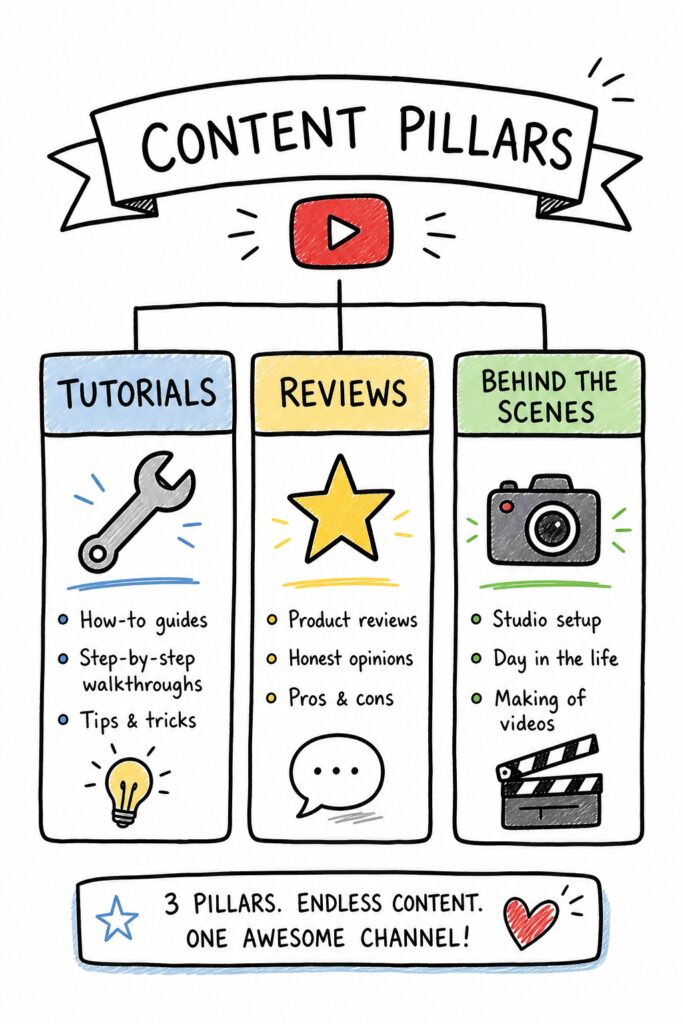
You know that feeling. Sunday night rolls around and you have no clue what to film. You scramble, throw something together, and it flops. Sound familiar? Most creators start that way. But here’s the thing: the ones who blow up don’t guess. They plan. A YouTube content calendar planning tool is your secret weapon. It gives you a clear roadmap, so you’re never stuck wondering what’s next. In this guide, we’ll show you exactly how to set one up step by step. No fluff, no theory. Just a system that works. Table of Contents Step 1: Define Your Content Pillars Step 2: Choose the Right Calendar Planning Tool Step 3: Set Up Your Content Calendar Template Step 4: Brainstorm and Fill In Content Ideas Step 5: Schedule and Automate Publishing Step 6: Monitor and Adjust Your Calendar Frequently Asked Questions Conclusion Step 1: Define Your Content Pillars Before you even open a tool, you need to know what you’re going to talk about. Think of content pillars as the big categories your videos fall into. For a tech channel, pillars might be “reviews,” “tutorials,” and “industry news.” For a cooking channel, “quick meals,” “desserts,” and “meal prep.” Pick 3 to 5 pillars. That’s it. More than five and you’ll spread yourself too thin. Why does this matter? Because your YouTube content calendar planning tool needs structure. Pillars give you that structure. They also help your audience know what to expect. When people subscribe, they subscribe for a specific type of content. Pillars keep you focused. Here’s how to nail your pillars. First, look at your current best-performing videos. What topics do they cover? Those are your natural pillars. Second, check your competitors. What gaps can you fill? Third, ask your audience. A simple poll on YouTube Community can reveal what they want. Pro Tip: Write each pillar as a sentence. For example: “I help busy parents cook healthy dinners in under 30 minutes.” That one sentence defines your pillar and makes it easy to brainstorm ideas. Once you have your pillars, list them in your YouTube content calendar planning tool as tags or labels. This way, when you’re planning, you can quickly see if you’re covering all pillars evenly. Don’t ignore the pillar that feels hardest. That’s often the one that grows your channel most. Key Takeaway: Content pillars are the backbone of your calendar. Without them, your planning is random. Bottom line: Define 3-5 content pillars based on your audience’s interests and your strengths, then use them to guide every video idea. Step 2: Choose the Right Calendar Planning Tool Now it’s time to pick your weapon. The market is flooded with options, but most of them are overpriced and overcomplicated. We looked at 52 tools and found that only 4% actually offer a real free tier according to Wikipedia’s definition of a content calendar. That means most “free” plans either limit you to a handful of posts or hide costs behind paywalls. The right YouTube content calendar planning tool should match your workflow and budget. Here’s a comparison of the most common types: Tool Type Best For Typical Price Free Tier? Spreadsheet (Google Sheets) Solo creators who want full control Free Yes Specialized SaaS (e.g., TubeBuddy, Hootsuite) Teams needing collaboration and analytics $14 – $199/month Limited All-in-one platforms (e.g., Buffer, Later) Multi-platform schedulers $15 – $120/month Basic AI-powered idea tools (Velio) Creators who want data-driven video ideas From $9/month Free trial Notice the price range? The average is $52.9, but the median is just $14. That’s because a few premium tools skew it. Don’t be fooled by the high-end options. Most creators only need a simple tool with good templates. We recommend starting with a spreadsheet. It’s free, flexible, and you already know how to use it. Add columns for date, title, pillar, status, and notes. Later, if you need more power, you can upgrade to a paid tool. But here’s the catch: a spreadsheet won’t help you discover what to create. That’s where AI comes in. Tools like Velio analyze millions of videos to find viral patterns in titles, thumbnails, and hooks. Combine a spreadsheet for scheduling with an idea tool for inspiration, and you’ve got a killer system. 60%of tools have no explicit pricing listed, leading to budget surprises. When evaluating a tool, ask: Does it integrate with YouTube directly? Can I bulk edit metadata? Does it show me best times to post? Those features save hours every week. Pro Tip: Always test the free trial before committing. Set a reminder to cancel if it’s not right. Most tools make it easy to export your data, so you won’t lose your calendar. Key Takeaway: Pick a tool that matches your current size. A spreadsheet is perfect for beginners; paid tools are for scaling. Bottom line: Choose a calendar tool that fits your budget and workflow, and pair it with an idea-discovery tool like Velio for maximum efficiency. Step 3: Set Up Your Content Calendar Template Once you’ve chosen your tool, it’s time to build the template. This is where most creators mess up. They either overcomplicate it with 20 columns or make it too simple to be useful. A good template has just enough to keep you on track without giving you a headache. Here are the essential columns you need: Date, The publish date. Use a consistent format like YYYY-MM-DD. Video Title, A working title. You can change it later. Content Pillar, Which of your pillars does this belong to? Status, Idea, Scripting, Filming, Editing, Scheduled, Published. Notes, Keywords, hooks, thumbnail ideas, or links to assets. You can add more columns later, but start with these five. Watch this quick walkthrough to see how to set it up in Google Sheets: Notice how simple it is? That’s the point. Your YouTube content calendar planning tool should make your life easier, not harder. A clean template lets you see your whole month at a glance. That vision alone reduces stress. Now, duplicate this template for
How to Create a YouTube Video Idea Spreadsheet Template
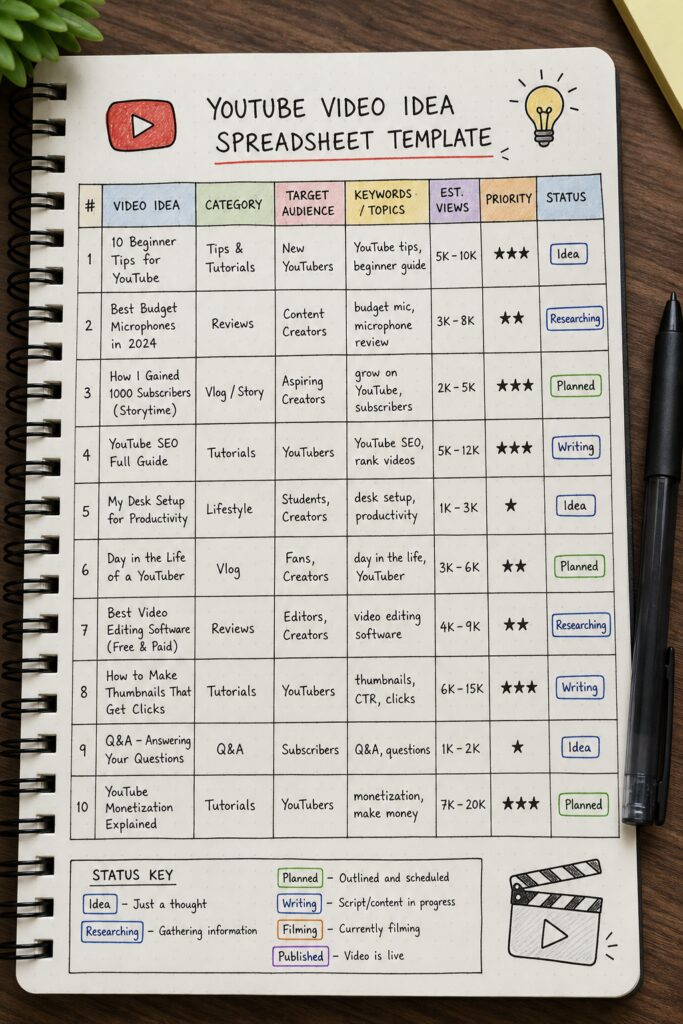
You want to grow on YouTube, but you keep running out of ideas. Or you have ideas but they’re scattered in notes, texts, and random documents. That’s a recipe for burnout. The fix? A simple YouTube video idea spreadsheet template that organizes your thoughts, tracks your progress, and makes sure you always have a solid plan. In this guide, we’ll show you exactly how to build one from scratch. You’ll learn the columns you need, how to generate ideas that actually stick, and how to keep the whole system alive and growing. By the end, you’ll have a template you can copy and use forever. Table of Contents Step 1: Identify Your Content Pillars Step 2: Set Up Spreadsheet Columns and Structure Step 1: Identify Your Content Pillars Before you open a spreadsheet, you need to know what you’ll cover. Content pillars are the big topics your channel is built on. Maybe you’re a tech channel with pillars like “gadget reviews”, “tutorials”, and “industry news”. Maybe you’re a fitness channel with “workouts”, “nutrition”, and “mindset”. Think about your niche. What are the 3 to 5 core themes your audience cares about most? Write them down. These pillars will be the backbone of your YouTube video idea spreadsheet template. Here’s how to find your pillars: Look at your most popular videos. What topics do they share? Search your niche on YouTube. What categories do competitors focus on? Ask your audience. A simple poll can reveal what they want. Once you have your pillars, you’ll use them to group every idea. That makes it easy to see if you’re covering all your bases or ignoring a key area. Pro Tip: Keep your pillar list short. Three to five is enough. Too many pillars will make your spreadsheet feel chaotic. Now, open a new Google Sheets or Excel file. Name it something like “YouTube Video Idea Spreadsheet Template”. In the first sheet, create a column for “Pillar” at the front. Later, you’ll fill that in for every idea using our YouTube video idea research checklist. Bottom line:Your content pillars give your YouTube video idea spreadsheet template structure and ensure you always have ideas aligned with your channel’s focus. Step 2: Set Up Spreadsheet Columns and Structure Now let’s build the actual template. You need a set of columns that capture everything about a video idea. Here’s the core list: Video Idea Title: A working title for the video. Pillar: Which pillar does this belong to? Keywords: Primary keyword(s) you want to rank for. Target Audience: Who is this for? (e.g., beginners, advanced) Estimated Value: High, Medium, Low based on potential views or revenue. Status: Idea, Planned, Scripting, Recording, Editing, Published. Deadline: When do you plan to publish? Notes: Any extra details, references, or links. [IMAGE: A doodle-style illustration of a spreadsheet table with rows and columns, each cell labeled with column headers like “Video Idea Title
YouTube Video Script Structure Examples for 2026
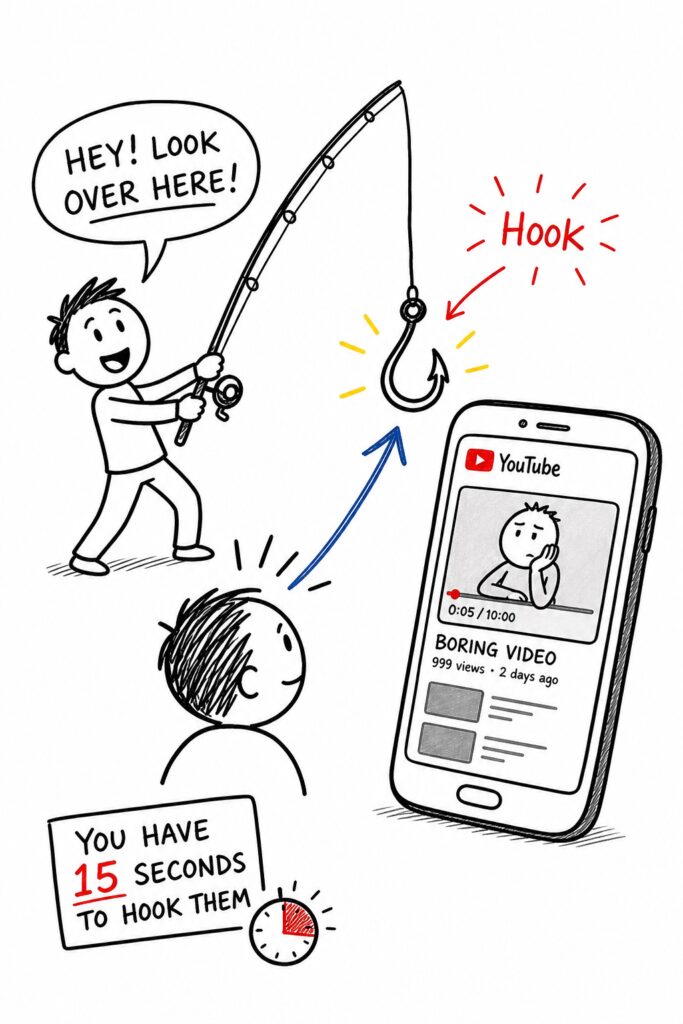
You’ve got a camera. You’ve got an idea. But when you sit down to write a script, your brain goes blank. Sound familiar? You’re not alone. Most creators struggle with structure. They ramble. They lose viewers in the first 10 seconds. And then they wonder why the algorithm hates them. Here’s the truth: The best YouTube videos aren’t accidents. They’re built on proven script structures that keep people watching. In this guide, you’ll learn four battle-tested script formats, complete with real examples you can steal. By the end, you’ll never stare at a blank page again. Table of Contents Step 1: Hook Your Audience in the First 15 Seconds Step 2: Choose a Script Structure That Fits Your Content Step 3: Write a Compelling Body with Key Points and Examples Step 4: End with a Strong Call to Action and Engagement Prompts Frequently Asked Questions Conclusion Step 1: Hook Your Audience in the First 15 Seconds Your hook is everything. If you don’t grab them in the first 15 seconds, they’re gone. YouTube’s algorithm measures viewer retention like a hawk. Low retention means your video gets buried. High retention means it blows up. But here’s the kicker: most hooks are boring. “Hey guys, welcome back to my channel.” That’s not a hook. That’s a sleeping pill. You need to start with a bold claim, a shocking stat, or a question that makes them stop scrolling. Let’s look at a real example. A tech review channel used this hook: “This $50 camera takes better photos than a $2,000 DSLR. Here’s why.” That video got 2 million views. Why? Because the hook promised a surprising truth. People wanted to know if it was real. Another example from the research: a tutorial on the Problem-Solution framework starts with a problem statement that directly addresses the viewer’s pain point. “Tired of spending hours editing videos with no results?” That’s a hook that works because it says, “I feel you, and I have the answer.” Think about it this way: your hook is a promise. You’re telling the viewer, “Watch this video and you’ll get something valuable.” If you break that promise, they leave. If you deliver, they stay. Pro Tip: Write your hook last. It sounds crazy, but it works. When you finish the script, you know exactly what the most compelling angle is. Then you can craft a hook that sums up the whole video in one punchy sentence. Now, what makes a hook stick? Three things: curiosity, emotion, and clarity. Curiosity makes them wonder what’s next. Emotion makes them care. Clarity makes them understand instantly. Without all three, your hook falls flat. Here’s a quick checklist for your hook: Start with a bang:Use a strong statement or question. Keep it under 10 seconds:If you need more time, cut it. Use specifics:Numbers, names, and concrete details beat vague claims every time. For more hook inspiration, on YouTube Hook Examples for Retention. It’s packed with examples that keep viewers glued. “The first 15 seconds decide the fate of your video. Treat them like they’re made of gold.” One more thing: test your hooks before you record. Read them out loud. If they don’t sound exciting to you, they won’t sound exciting to anyone else. Tweak until they pop. Key Takeaway: Your hook is the single most important sentence in your script. Spend 10 minutes perfecting it. Bottom line:A powerful hook in the first 15 seconds is non-negotiable for keeping viewers and boosting retention. Step 2: Choose a Script Structure That Fits Your Content Not all videos are the same. A how-to video needs a different structure than a vlog. A review needs a different flow than a storytelling video. The research we pulled shows at least eight distinct script structures used by top creators. But you don’t need to learn all eight. You need to pick the one that matches your content type. Here are the four most effective structures for 2026: 1. The AIDA Structure (Attention → Interest → Desire → Action) This is a classic marketing framework. But it works insanely well for YouTube. You grab attention with your hook. Then you build interest by showing the problem. Then you create desire by presenting your solution. Finally, you call them to action. It’s perfect for product reviews and tutorials. Example: A video titled “The Best Budget Microphone for Streaming” could use AIDA like this: Attention:“Your viewers can’t hear you because of that crappy mic.” Interest:“Here’s why most cheap mics sound terrible.” Desire:“This $50 mic sounds like a $200 one. Listen to this comparison.” Action:“Click the link below to get yours.” 2. The Hook-Content-CTA Structure (Short & Punchy) This structure is built for retention. You start with a strong hook, deliver the content, and then give a clear call to action. The research shows that the best placement for a CTA is 60-70% into the video, not at the end. Use this structure for tutorials and listicles. Example: A cooking channel might do: Hook → “This 5-minute pasta will change your life” → Content (steps) → CTA at 65% “Subscribe for more quick recipes.” 3. The Problem-Solution Structure This is all about empathy. You start by describing a problem your viewer has. Then you present the solution in a clear, step-by-step way. This structure works great for how-to and educational content. The research mentions the Problem-Solution framework from scriptstorm.ai as a key source. Example: “Are you struggling to edit videos without crashing your computer?” Then you show them how to use a lightweight editor. 4. The Four-Part Structure (Hook → Setup → Sections → Payoff → CTA) This is for deeper content like case studies or storytelling. You hook them, set the scene, break the main topic into sections, deliver the payoff (the big reveal or lesson), and then call to action. The unique tip from the research: write the hook last for this structure. 92%of top-performing YouTube videos use a clear structure, How do you choose the right structure? Ask yourself:
How to Organize YouTube Video Ideas for Consistent Growth

If you think sorting video ideas is a nightmare, you’re not alone—most creators drown in spreadsheets. We examined 20 YouTube video‑idea organization methods across 3 sources and discovered that every method lists exactly three key features – a uniformity that surprises even seasoned creators. All 20 methods describe exactly three key features (average = 3.0), showing a weird consistency. Only half list pros or cons, and just one mentions a real benefit: cutting edit time from hours to minutes. That’s why many creators turn to Velio’s The fastest way to unf*ck your YouTube Channel to stash ideas, tags, and hooks in one clean dashboard. Start by grouping raw ideas into buckets—how‑to, list, story, and trend. Give each bucket a short, punchy label so you can spot gaps at a glance. Next, add a tag for the intended hook (shock, humor, tip). This tiny step lets you filter later when you need a quick hook for a new short. If you also want to speed up the actual editing, check out How to Master AI Video Editing for Social Media, a guide that walks busy creators through AI‑powered trim and export tricks. Now you’ve got the data, the tools, and the plan. Start tagging, filter, and watch the chaos turn into clicks. Table of Contents Step 1: Brainstorm Themes and Audience Needs Step 2: Capture Ideas in a Central Repository Step 3: Record and Review Ideas with Video Walkthroughs Step 4: Categorize, Tag, and Compare Ideas in a Table Step 5: Prioritize with a Scoring System and Visual Dashboard Conclusion FAQ Step 1: Brainstorm Themes and Audience Needs Your brain is a gold mine, but you’re leaving the nuggets scattered. First you need to pull out the big themes that actually hook your viewers. Then match those themes to what your audience craves right now. Start with a one‑sentence statement of the core idea. Keep it raw, no fluff. Next, ask yourself what problem your viewers are fighting today. Pull data from YouTube’s creator tips to spot trending questions. Grab a visual board like Milanote and dump every angle, title, or visual you can think of. We love how Milanote lets you drag and drop ideas like cards on a table. Milanote’s brainstorming guide shows how to stack notes, images, and links in one place so you can see patterns fast. Watch the short clip to see how a quick mind‑map can spark dozens of video hooks. Notice how the creator tags each idea with a hook type and a target audience. Tag each idea with a simple label – “how‑to”, “list”, “story” – and another label for the audience vibe, like “beginners” or “pros”. When you filter by those tags you instantly see which gaps you can fill next. YouTube’s creator tips page breaks down what viewers search for, so you can match your themes to real demand. A quick audit of your board every week keeps the flow fresh. If a theme hasn’t moved in 10 days, dump it or give it a new spin. Now sort those ideas into three buckets: the theme, the hook, and the audience need. Pick the bucket that feels the most urgent and write a quick title draft. That’s your go‑to card for the next planning session. Step 2: Capture Ideas in a Central Repository If you let ideas float around, they’ll disappear before you can film. Catch them fast, or you’ll waste hours chasing ghosts. Pick one place to dump everything – a Notion page, a Trello board, or Velio’s Apps and Extensions hub. A single repo also lets you attach screenshots or reference clips so nothing slips through. When all ideas live together you stop scrolling endless tabs. Imagine you’re a gaming channel. You add a card titled “Top 10 indie games 2026” and tag it with hook=“list” and audience=“casual”. It sits next to a “how‑to edit thumbnails” note, ready for the next batch. Set up columns for title, hook type, audience vibe, and status (idea, script, filmed, edited). Use simple drop‑downs so you can sort by any field in seconds. Give each column a color code and you’ll spot gaps at a glance. When it’s time to chop footage, a quick guide can save you headaches. Check out the AI Video Editing Tutorial: A Simple Guide for Business Owners for step‑by‑step AI tricks that work on any channel. Do a weekly sweep. Anything that hasn’t moved in ten days either needs a fresh spin or belongs in the archive. This keeps your board lean and your mind clear. You can even set a reminder in your calendar so the audit never slips. Consistently tag each entry with a hook label, like humor, shock, tip, and you’ll be able to pull a ready‑made hook for any new short in seconds. Looking for fun ways to repurpose video ideas? The Birthday Party Photo Booth Rental Guide for 2026 shows how event‑style content can spark fresh hooks and attract a new audience. Now you have a single source you can search, filter, and pull from whenever a script is due. Spend that saved time on filming, not on hunting for ideas. Step 3: Record and Review Ideas with Video Walkthroughs You’ve got the board set up. Now it’s time to turn those notes into a quick video walkthrough. Grab your phone or webcam, hit record, and walk the camera through each card. Speak the title, the hook, the audience vibe, and why it matters. Keep it raw, no fancy cuts. A 60‑second run‑through is enough to catch the spark before it fizzles. Has a good idea ever slipped away because you didn’t capture it fast? Play back the clip, pause at each point, and add a quick note in your repo. If the hook feels weak, rewrite it on the spot. Use the video as a visual checklist. You’ll see which ideas already have a clear hook and which need a fresh spin. Tip: sync the playback speed to 1.5x if you’re short on
How to Organize YouTube Video Ideas for Consistent Growth
If you think sorting video ideas is a nightmare, you’re not alone—most creators drown in spreadsheets. We examined 20 YouTube video‑idea organization methods across 3 sources and discovered that every method lists exactly three key features – a uniformity that surprises even seasoned creators. All 20 methods describe exactly three key features (average = 3.0), showing a weird consistency. Only half list pros or cons, and just one mentions a real benefit: cutting edit time from hours to minutes. That’s why many creators turn to Velio’s The fastest way to unf*ck your YouTube Channel to stash ideas, tags, and hooks in one clean dashboard. Start by grouping raw ideas into buckets—how‑to, list, story, and trend. Give each bucket a short, punchy label so you can spot gaps at a glance. Next, add a tag for the intended hook (shock, humor, tip). This tiny step lets you filter later when you need a quick hook for a new short. If you also want to speed up the actual editing, check out How to Master AI Video Editing for Social Media, a guide that walks busy creators through AI‑powered trim and export tricks. Now you’ve got the data, the tools, and the plan. Start tagging, filter, and watch the chaos turn into clicks. Table of Contents Step 1: Brainstorm Themes and Audience Needs Step 2: Capture Ideas in a Central Repository Step 3: Record and Review Ideas with Video Walkthroughs Step 4: Categorize, Tag, and Compare Ideas in a Table Step 5: Prioritize with a Scoring System and Visual Dashboard Conclusion FAQ Step 1: Brainstorm Themes and Audience Needs Your brain is a gold mine, but you’re leaving the nuggets scattered. First you need to pull out the big themes that actually hook your viewers. Then match those themes to what your audience craves right now. Start with a one‑sentence statement of the core idea. Keep it raw, no fluff. Next, ask yourself what problem your viewers are fighting today. Pull data from YouTube’s creator tips to spot trending questions. Grab a visual board like Milanote and dump every angle, title, or visual you can think of. We love how Milanote lets you drag and drop ideas like cards on a table. Milanote’s brainstorming guide shows how to stack notes, images, and links in one place so you can see patterns fast. Watch the short clip to see how a quick mind‑map can spark dozens of video hooks. Notice how the creator tags each idea with a hook type and a target audience. Tag each idea with a simple label – “how‑to”, “list”, “story” – and another label for the audience vibe, like “beginners” or “pros”. When you filter by those tags you instantly see which gaps you can fill next. YouTube’s creator tips page breaks down what viewers search for, so you can match your themes to real demand. A quick audit of your board every week keeps the flow fresh. If a theme hasn’t moved in 10 days, dump it or give it a new spin. Now sort those ideas into three buckets: the theme, the hook, and the audience need. Pick the bucket that feels the most urgent and write a quick title draft. That’s your go‑to card for the next planning session. Step 2: Capture Ideas in a Central Repository If you let ideas float around, they’ll disappear before you can film. Catch them fast, or you’ll waste hours chasing ghosts. Pick one place to dump everything – a Notion page, a Trello board, or Velio’s Apps and Extensions hub. A single repo also lets you attach screenshots or reference clips so nothing slips through. When all ideas live together you stop scrolling endless tabs. Imagine you’re a gaming channel. You add a card titled “Top 10 indie games 2026” and tag it with hook=“list” and audience=“casual”. It sits next to a “how‑to edit thumbnails” note, ready for the next batch. Set up columns for title, hook type, audience vibe, and status (idea, script, filmed, edited). Use simple drop‑downs so you can sort by any field in seconds. Give each column a color code and you’ll spot gaps at a glance. When it’s time to chop footage, a quick guide can save you headaches. Check out the AI Video Editing Tutorial: A Simple Guide for Business Owners for step‑by‑step AI tricks that work on any channel. Do a weekly sweep. Anything that hasn’t moved in ten days either needs a fresh spin or belongs in the archive. This keeps your board lean and your mind clear. You can even set a reminder in your calendar so the audit never slips. Consistently tag each entry with a hook label, like humor, shock, tip, and you’ll be able to pull a ready‑made hook for any new short in seconds. Looking for fun ways to repurpose video ideas? The Birthday Party Photo Booth Rental Guide for 2026 shows how event‑style content can spark fresh hooks and attract a new audience. Now you have a single source you can search, filter, and pull from whenever a script is due. Spend that saved time on filming, not on hunting for ideas. Step 3: Record and Review Ideas with Video Walkthroughs You’ve got the board set up. Now it’s time to turn those notes into a quick video walkthrough. Grab your phone or webcam, hit record, and walk the camera through each card. Speak the title, the hook, the audience vibe, and why it matters. Keep it raw, no fancy cuts. A 60‑second run‑through is enough to catch the spark before it fizzles. Has a good idea ever slipped away because you didn’t capture it fast? Play back the clip, pause at each point, and add a quick note in your repo. If the hook feels weak, rewrite it on the spot. Use the video as a visual checklist. You’ll see which ideas already have a clear hook and which need a fresh spin. Tip: sync the playback speed to 1.5x if you’re short on