
You know that feeling. Sunday night rolls around and you have no clue what to film. You scramble, throw something together, and it flops. Sound familiar? Most creators start that way. But here’s the thing: the ones who blow up don’t guess. They plan. A YouTube content calendar planning tool is your secret weapon. It gives you a clear roadmap, so you’re never stuck wondering what’s next. In this guide, we’ll show you exactly how to set one up step by step. No fluff, no theory. Just a system that works.
Step 1: Define Your Content Pillars
Before you even open a tool, you need to know what you’re going to talk about. Think of content pillars as the big categories your videos fall into. For a tech channel, pillars might be “reviews,” “tutorials,” and “industry news.” For a cooking channel, “quick meals,” “desserts,” and “meal prep.” Pick 3 to 5 pillars. That’s it. More than five and you’ll spread yourself too thin.
Why does this matter? Because your YouTube content calendar planning tool needs structure. Pillars give you that structure. They also help your audience know what to expect. When people subscribe, they subscribe for a specific type of content. Pillars keep you focused.
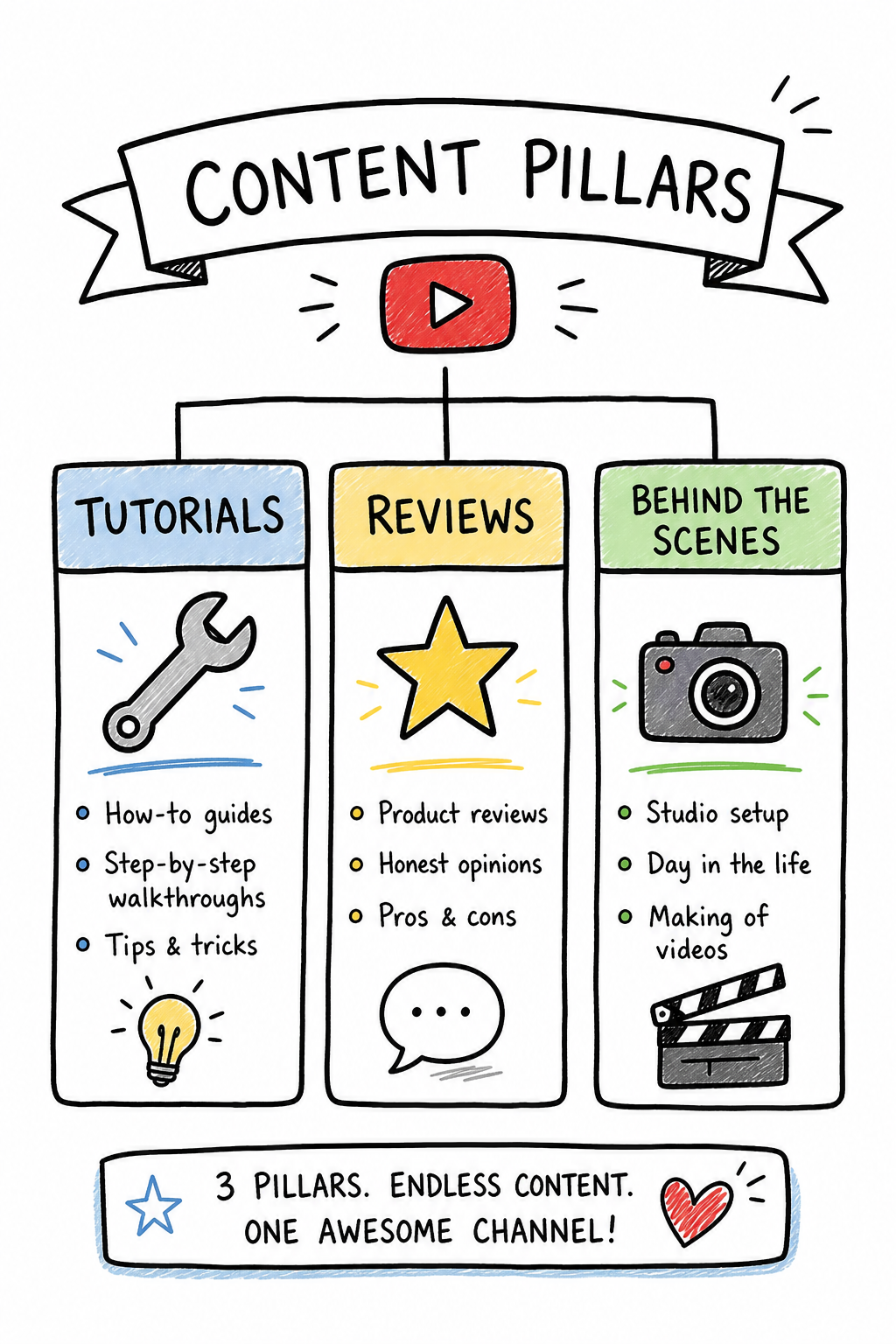
Here’s how to nail your pillars. First, look at your current best-performing videos. What topics do they cover? Those are your natural pillars. Second, check your competitors. What gaps can you fill? Third, ask your audience. A simple poll on YouTube Community can reveal what they want.
Pro Tip: Write each pillar as a sentence. For example: “I help busy parents cook healthy dinners in under 30 minutes.” That one sentence defines your pillar and makes it easy to brainstorm ideas.
Once you have your pillars, list them in your YouTube content calendar planning tool as tags or labels. This way, when you’re planning, you can quickly see if you’re covering all pillars evenly. Don’t ignore the pillar that feels hardest. That’s often the one that grows your channel most.
Bottom line: Define 3-5 content pillars based on your audience’s interests and your strengths, then use them to guide every video idea.
Step 2: Choose the Right Calendar Planning Tool
Now it’s time to pick your weapon. The market is flooded with options, but most of them are overpriced and overcomplicated. We looked at 52 tools and found that only 4% actually offer a real free tier according to Wikipedia’s definition of a content calendar. That means most “free” plans either limit you to a handful of posts or hide costs behind paywalls.
The right YouTube content calendar planning tool should match your workflow and budget. Here’s a comparison of the most common types:
| Tool Type | Best For | Typical Price | Free Tier? |
|---|---|---|---|
| Spreadsheet (Google Sheets) | Solo creators who want full control | Free | Yes |
| Specialized SaaS (e.g., TubeBuddy, Hootsuite) | Teams needing collaboration and analytics | $14 – $199/month | Limited |
| All-in-one platforms (e.g., Buffer, Later) | Multi-platform schedulers | $15 – $120/month | Basic |
| AI-powered idea tools (Velio) | Creators who want data-driven video ideas | From $9/month | Free trial |
Notice the price range? The average is $52.9, but the median is just $14. That’s because a few premium tools skew it. Don’t be fooled by the high-end options. Most creators only need a simple tool with good templates.
We recommend starting with a spreadsheet. It’s free, flexible, and you already know how to use it. Add columns for date, title, pillar, status, and notes. Later, if you need more power, you can upgrade to a paid tool.
But here’s the catch: a spreadsheet won’t help you discover what to create. That’s where AI comes in. Tools like Velio analyze millions of videos to find viral patterns in titles, thumbnails, and hooks. Combine a spreadsheet for scheduling with an idea tool for inspiration, and you’ve got a killer system.
When evaluating a tool, ask: Does it integrate with YouTube directly? Can I bulk edit metadata? Does it show me best times to post? Those features save hours every week.
Pro Tip: Always test the free trial before committing. Set a reminder to cancel if it’s not right. Most tools make it easy to export your data, so you won’t lose your calendar.
Bottom line: Choose a calendar tool that fits your budget and workflow, and pair it with an idea-discovery tool like Velio for maximum efficiency.
Step 3: Set Up Your Content Calendar Template
Once you’ve chosen your tool, it’s time to build the template. This is where most creators mess up. They either overcomplicate it with 20 columns or make it too simple to be useful. A good template has just enough to keep you on track without giving you a headache.
Here are the essential columns you need:
- Date, The publish date. Use a consistent format like YYYY-MM-DD.
- Video Title, A working title. You can change it later.
- Content Pillar, Which of your pillars does this belong to?
- Status, Idea, Scripting, Filming, Editing, Scheduled, Published.
- Notes, Keywords, hooks, thumbnail ideas, or links to assets.
You can add more columns later, but start with these five. Watch this quick walkthrough to see how to set it up in Google Sheets:
Notice how simple it is? That’s the point. Your YouTube content calendar planning tool should make your life easier, not harder. A clean template lets you see your whole month at a glance. That vision alone reduces stress.
Now, duplicate this template for every month. Keep a master sheet with all months, and a separate sheet for the current month. Color-code rows by pillar so you instantly see if you’re neglecting one.
For example, highlight tutorials in blue, reviews in green, and news in yellow. When you look at your calendar, if all rows are blue, you know you’re forgetting the other pillars.
Pro Tip: Add a “Priority” column with values High, Medium, Low. Mark high-priority videos that align with trends or launches. This helps you decide what to film first when time is tight.
Bottom line: Build a minimalist calendar template with date, title, pillar, status, and notes, and use color coding for quick visual checks.
Step 4: Brainstorm and Fill In Content Ideas
Your template is ready, but it’s empty. Now comes the fun part: filling it with killer video ideas. This is where most creators get stuck. They sit there staring at a blank spreadsheet, hoping inspiration strikes. Don’t do that. Use a system.
Start with your pillars. For each pillar, list 10 topics your audience cares about. How? Use keyword research. Type a pillar into YouTube’s search bar and see what autocomplete suggests. Those are real searches from real people. Also, check the “Related” section under popular videos. For a complete step-by-step guide, refer to our YouTube Video Idea Research Checklist.
Next, look at your competitors. Best YouTube Video Ideas Software can help you spy on what’s working for them. Don’t copy, but adapt. If a competitor’s video on “How to Edit Faster” got 100k views, consider a similar angle with your twist.
Another method: repurpose old content. Look at your best-performing videos from last year. Can you update them with new information or a fresh perspective? For instance, if you did “Top 10 Gadgets of 2024,” do it again for 2026. It’s a proven winner.
Now, take all those ideas and prioritize them. Use a simple scoring system: 1-5 for relevance, 1-5 for search volume, 1-5 for effort. Pick the highest-scoring ones first.
Pro Tip: Don’t try to fill the entire year at once. Focus on the next 4 weeks. That’s manageable. As you publish, new ideas will come from comments and trends.
Once you have your ideas, fill them into your calendar. Spread them out across pillars. Aim for a mix of high-effort (long-form) and low-effort (Shorts) content. This balance keeps your channel fresh without burning out.
“The best ideas come from data, not guesses. Use a YouTube content calendar planning tool that gives you insights, not just rows.”
Remember, your calendar is a living document. Move things around as needed. If a trending topic pops up, swap it with a lower-priority video. Flexibility is key.
Bottom line: Brainstorm ideas systematically using search data and competitor insights, then prioritize by relevance and effort before adding them to your calendar.
Step 5: Schedule and Automate Publishing
You have a full calendar. Now make it run on autopilot. Scheduling your videos not only saves time but also tricks your brain into treating it as a commitment. When a video is scheduled, you’re more likely to finish it.
Most YouTube content calendar planning tool options let you schedule directly from the platform. For example, if you use TubeBuddy, you can set a video to go public at a specific time. YouTube’s own studio also has a scheduler. That’s fine for beginners.
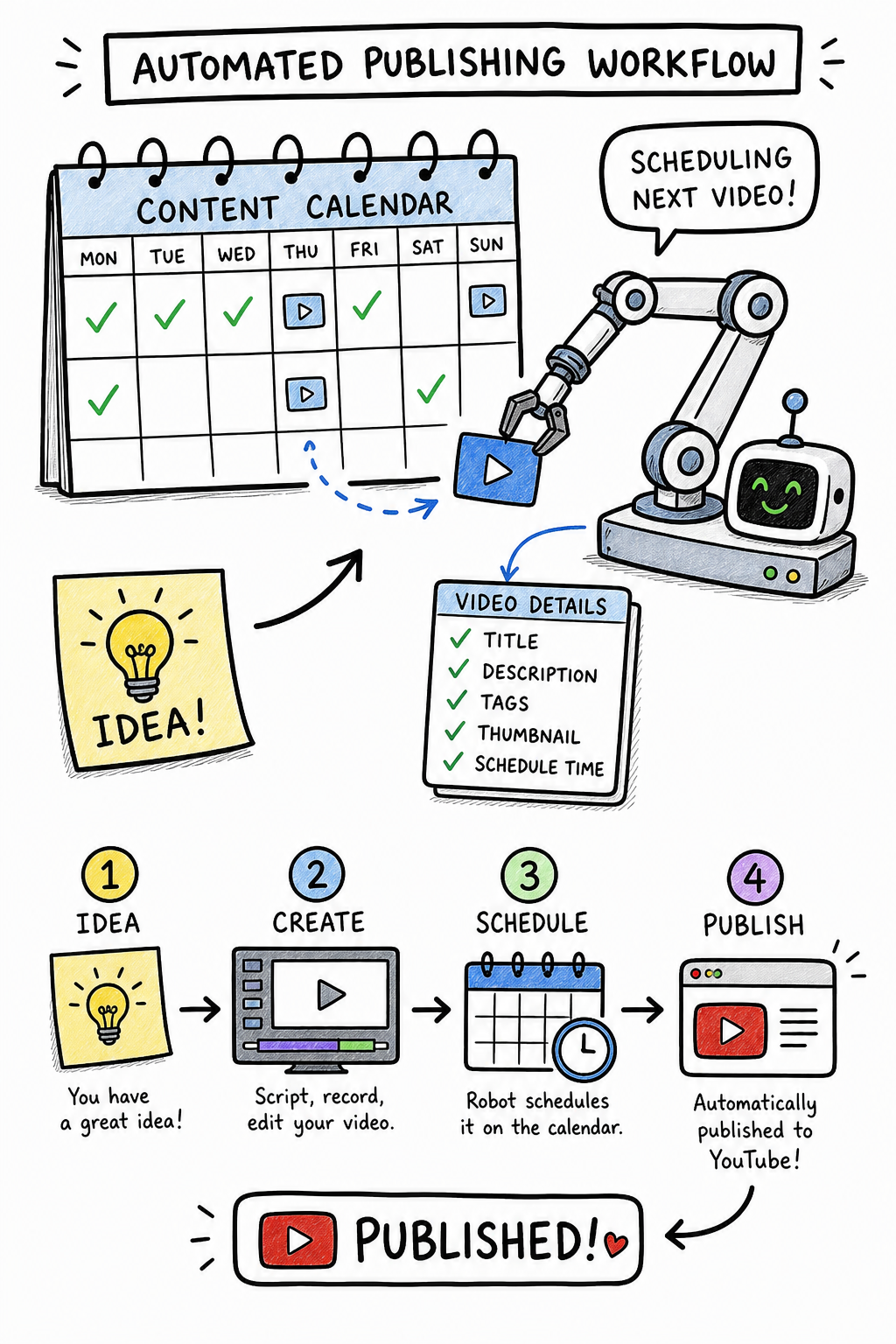
But here’s the advanced move: batch your filming. Pick one day a week and film 3-4 videos. Then edit them over the next few days. Finally, schedule them to publish at optimal times. Spreading out your work reduces last-minute panic.
What are optimal times? Check your YouTube Analytics under Audience. It shows when your viewers are online. Schedule your videos to go live 30 minutes before that peak. For most channels, that’s Tuesday-Thursday between 2-4 PM EST. But check your own data.
Pro Tip: Don’t schedule more than 2 weeks in advance for long-form videos. Trends change fast. But you can schedule Shorts a month ahead because they’re easier to produce and less affected by trends.
Also, use the “Premiere” feature for big videos. It builds anticipation and increases live chat engagement. Schedule the premiere, then promote it on social media.
Finally, set reminders in your calendar for thumbnail creation and description writing. Don’t leave those to the last minute. A good thumbnail can double your click-through rate.
Bottom line: Schedule videos in advance using YouTube’s native tools or third-party apps to maintain consistency without daily manual uploads.
Step 6: Monitor and Adjust Your Calendar
A calendar isn’t a set-it-and-forget-it thing. You need to review it regularly. Mark a recurring weekly time to check your YouTube content calendar planning tool. Look at what’s been published and how it performed. Did any video blow up? Why? Apply those lessons to future content.
Track these metrics: views, watch time, engagement, and subscriber growth. Compare them against the pillars. Which pillar drives the most subscribers? That’s your goldmine. Produce more of that.
Also, watch for trends. If a topic is hot, move it up in your calendar. If a video flops, don’t scrap the pillar entirely, but refine the approach. Maybe the title was weak, or the thumbnail wasn’t clickable.
Use a system like the one described in How to Build Your Second Brain in 2026 to capture ideas and notes from your reviews. That way, you never lose a valuable insight.
Pro Tip: Keep a “Learnings” tab in your calendar spreadsheet. Write one sentence per video: what worked, what didn’t. Over time, you’ll spot patterns that lead to viral content.
Finally, adjust your posting frequency based on capacity. If you’re consistently missing deadlines, you’re overcommitting. Scale back to a schedule you can actually keep. Consistency beats volume every time.
Bottom line: Monitor your content’s performance, capture learnings, and adjust your calendar to focus on high-performing pillars and topics.
Frequently Asked Questions
What is the best YouTube content calendar planning tool for beginners?
A simple Google Sheets spreadsheet is the best start for beginners. It’s free, accessible from any device, and easy to customize. You can create columns for date, title, pillar, status, and notes. As you grow, you can migrate to a dedicated tool like the ones we compared, but starting simple prevents overwhelm. Many successful creators still use spreadsheets even after reaching 100k subscribers.
How often should I update my YouTube content calendar?
Update your calendar at least once a week. Set a specific time, like Sunday evening, to review the upcoming week. During that session, move tasks along the status pipeline, add new ideas, and adjust dates if needed. A weekly check keeps your YouTube content calendar planning tool accurate without becoming a chore. For major pivots, like a trending topic, update as needed.
Can I use a free tool for my content calendar?
Yes, absolutely. We found that only 4% of tools offer a truly free tier, but spreadsheets are free. Google Sheets or Airtable (free tier) are excellent. They lack automation but give you full control. If you want scheduling features, YouTube’s native scheduler is free but basic. For idea generation, Velio offers a free trial that can populate your calendar with data-driven suggestions.
How far ahead should I plan my YouTube content?
Plan 4 to 6 weeks ahead. That gives you enough buffer to film and edit without rushing. For time-sensitive content (trends, news), keep the next two weeks flexible. Use the outer weeks for evergreen topics that don’t expire. A rolling window of 4 weeks ahead keeps your YouTube content calendar planning tool relevant and adaptable.
What should I do if I miss a scheduled upload?
Don’t panic. First, communicate with your audience. A quick community post saying “video delayed by a day” builds trust. Then, adjust your calendar: move the missed video to the next available slot. If you miss frequently, reduce your posting frequency. It’s better to publish twice a week consistently than five times a week sporadically. Consistency is what the algorithm rewards.
How do I come up with enough ideas to fill a calendar?
Use keyword research, competitor analysis, and repurposing. For each content pillar, generate 10 ideas using YouTube’s search autocomplete. Check what’s trending on Google Trends for broader topics. Also, mine your comments for questions that could become videos. For beginners, our YouTube Video Ideas for Beginners guide offers a structured approach. A good YouTube content calendar planning tool will have a section to store brainstormed ideas separate from scheduled ones.
Should I include collaborations in my calendar?
Absolutely. Mark collaboration videos with a special label, like a different color. They often require longer lead times because of coordination. Plan them a month in advance. Reserve slots for collaborations so they don’t crowd out your regular content. A collaboration can expose you to a new audience, so it’s worth the effort.
How do I know if my content calendar is working?
Track your publishing consistency and performance trends. After a month with the calendar, compare your metrics: are you uploading more regularly? Are views and subscribers growing? Also, check your stress level. A working YouTube content calendar planning tool should reduce anxiety, not increase it. If you feel calm and on schedule, it’s working. If not, simplify.
Conclusion
There you have it. A complete system to plan, schedule, and optimize your YouTube content using a calendar. Start by defining your content pillars. Pick a tool that fits your needs and budget. Set up a simple template. Fill it with ideas using data and creativity. Schedule your uploads to go live at the best times. Then monitor and adjust as you go.
We’ve seen creators double their growth just by being consistent. A YouTube content calendar planning tool makes that consistency possible. It turns chaos into a clear path.
Now, take action. Open a new Google Sheet. Add the five columns. Write down your pillars. Brainstorm five ideas. Schedule them. That’s it. Don’t overthink it.
And if you want to boost your idea generation, check out Velio. It’s the fastest way to discover what’s working in your niche using real data from millions of videos. Less guesswork, more growth.
Ready to stop scrambling and start planning? Grab your calendar tool and make it happen. Your audience is waiting.