
How to Create a YouTube Video Ideas Spreadsheet That Boosts Your Channel
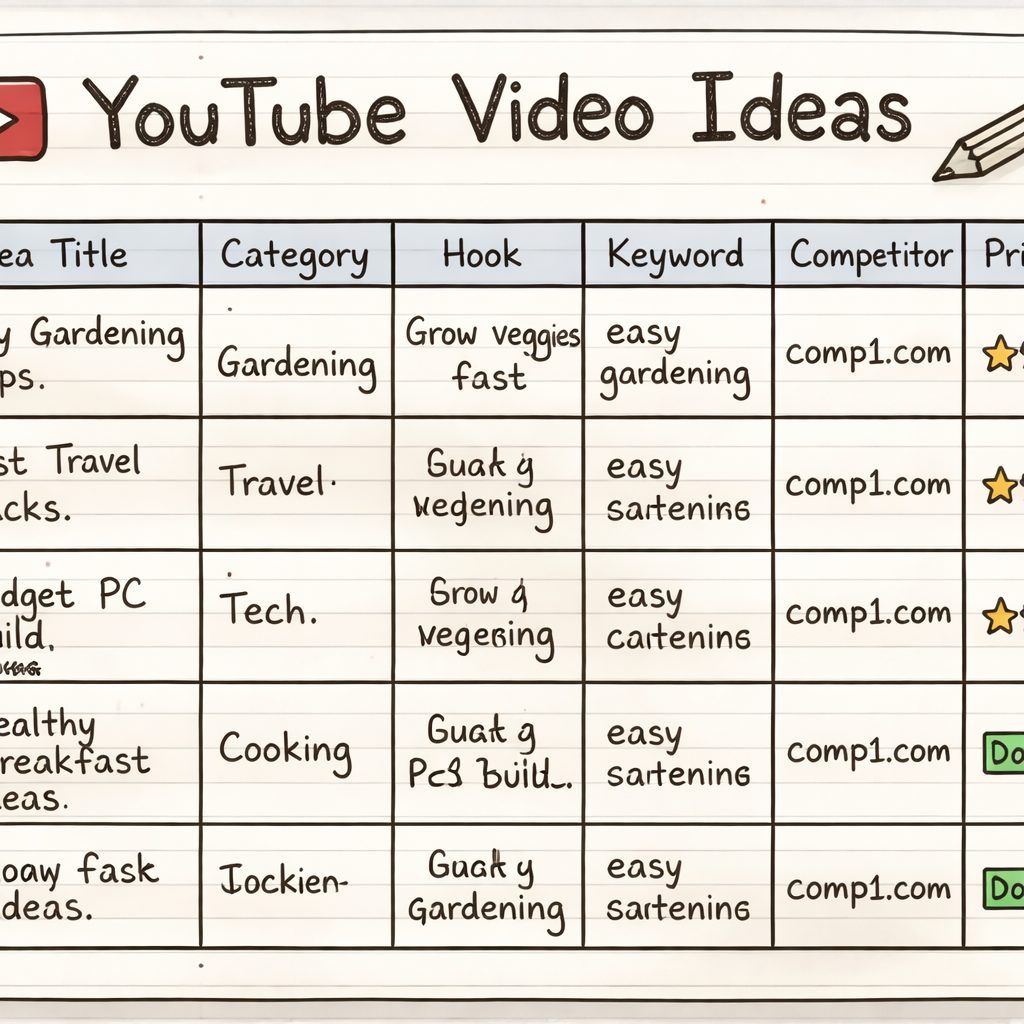
You want more views. You want more subs. You want a tool that stops the guess‑work. In this guide we’ll show you how to build a youtube video ideas spreadsheet that actually moves the needle. You’ll get a clear process, templates, and the exact formulas we use to track what works. We dug into 7 top YouTube tools and found that only one platform bundles AI‑driven idea generation with built‑in competitor trend analysis, a capability many creators assume is standard. Table of Contents Step 1: Brainstorm Your Video Categories Step 2: Set Up Columns and Templates Step 3: Populate Ideas and Prioritize Step 4: Add Formulas and a Performance Table Step 5: Collaborate and Automate the Workflow Conclusion FAQ Step 1: Brainstorm Your Video Categories Before you even open a spreadsheet, you need a map of the types of videos you want to make. Think of categories as buckets that hold similar ideas. They keep you from chasing every random trend and help you stay on brand. Start by looking at your own channel’s best‑performing videos. Which topics kept viewers watching? Which titles got the most clicks? Write those topics down. Then add a few fresh angles you’ve seen in the niche. One simple trick is to watch the top 10 videos in your niche and note the common themes. You might see a pattern like “how‑to guides,” “case studies,” or “list‑style reviews.” Those become your first categories. Here’s what I mean: imagine you run a cooking channel. Your categories could be “Quick Meals,” “Ingredient Deep Dives,” “Kitchen Hacks,” and “Budget Eats.” Each one tells you what kind of script, thumbnail, and hook to plan. Why does this matter for a youtube video ideas spreadsheet? Because once you have the columns set up (we’ll get to that), you can tag each idea with a category. Then you can filter, sort, and see which bucket is overdue for fresh content. Pro tip: keep the category list under 10 items. Too many and the sheet gets messy. Too few and you lose nuance. Aim for a sweet spot. Write categories on a sticky note first. Move them around until they feel right. Check competitor channels for hidden categories you haven’t tried yet. Use Velio’s AI search to spot emerging topics that fit your buckets. Now you have a solid foundation. Next we’ll turn that list into a spreadsheet that you can actually use. For more ideas on how creators map topics, watch this quick walk‑through:YouTube video on brainstorming categories. And later you’ll see another video that shows how to turn those notes into a spreadsheet:Video on turning ideas into sheets. Step 2: Set Up Columns and Templates Now that you know your categories, it’s time to build the skeleton of your youtube video ideas spreadsheet. The goal is to keep the sheet simple enough to fill fast, but detailed enough to give you insights later. Start with these core columns: Idea Title , a rough headline that catches the eye. Category , pick from the list you made. Hook , the one‑sentence promise you’ll make in the intro. Keyword , the main search term you want to rank for. Competitor Link , a URL of a video that inspired the idea. Priority , a score from 1‑5 based on potential. Status , Draft, Filming, Edited, Published. These columns cover everything you need to move from thought to upload. You can always add extra columns later, like “Thumbnail Sketch” or “CTA”. Here’s a quick visual of a template. Notice how each row is a single idea. That makes it easy to copy, paste, and sort. We also like to use data validation for the “Category” and “Status” columns. That way you only pick from a drop‑down list, which stops typos and keeps the sheet tidy. Pro tip: use conditional formatting to highlight high‑priority rows in bright green. Your eye will be drawn to the ideas that matter most. Set up a drop‑down list for categories using the Data → Data validation menu. Apply a green fill rule when Priority ≥ 4. Lock the header row so it stays visible while you scroll. Need a ready‑made template? Check out this Notion template that matches our column list:YouTube video idea tracker on Notion. It’s a solid start if you prefer a web‑based board over a Google Sheet. And if you want a quick look at how the columns line up with a real tool, watch the short demo here:Demo of column setup. (We already used that video above, but it’s worth a second glance.) Internal tip:Data‑Driven Insights for Boosting YouTube Videos , Velioshows how to pull AI‑suggested keywords straight into your sheet with one click. Step 3: Populate Ideas and Prioritize With your columns ready, start filling rows. Pull ideas from three places: your own mind, competitor videos, and AI tools. First, dump any raw ideas you have. Those can be titles you thought of while cooking dinner or notes from a podcast. Second, hunt competitor videos. Use Velio’s AI search to find videos that rank high for your target keyword. Copy the URL into the Competitor Link column. Third, let AI do the heavy lifting. Our pick, YouTube Video Ideas SaaS Platform, will spit out dozens of titles that match the keyword and show you how many views similar videos got. Now you have a pile of raw ideas. Time to prioritize. Score each row on three factors: Search demand , how many people type the keyword. Competition , how many strong videos already rank. Fit , how well the idea matches your brand. Give each factor a 1‑5 rating, then add them up. Anything 12 or higher gets a green flag. Those are the videos you should shoot first. Pro tip: add a column called “Estimated Views” that multiplies search demand by a conversion factor you pick (like 0.02). It gives you a quick sense of ROI. Use Velio’s AI to pull search volume numbers directly into the sheet. Set a filter to show only rows