
If you think a neon splash guarantees clicks, think again.
We examined six leading YouTube thumbnail design trends across two industry sources and found that layout patterns dominate the conversation, while color trends are surprisingly scarce. Only two out of six trends mention a dominant color, but four describe a concrete layout, showing creators care more about structure than hue.
So, what does that mean for you? Focus on a clear visual hierarchy, big faces, bold text, or a split-screen comparison, rather than chasing the perfect palette. Tools like Resource Vault – Velio let you scout proven layout formulas and test them fast.
In the sections ahead we’ll break down each trend, give you quick templates, and show how to tweak them for any niche, so you can stop guessing and start racking up clicks.
Step 1: Research Current Thumbnail Trends
First thing you gotta do is stop guessing and start hunting. In 2026 the thumbnail game is all about what actually works, not what hype says.
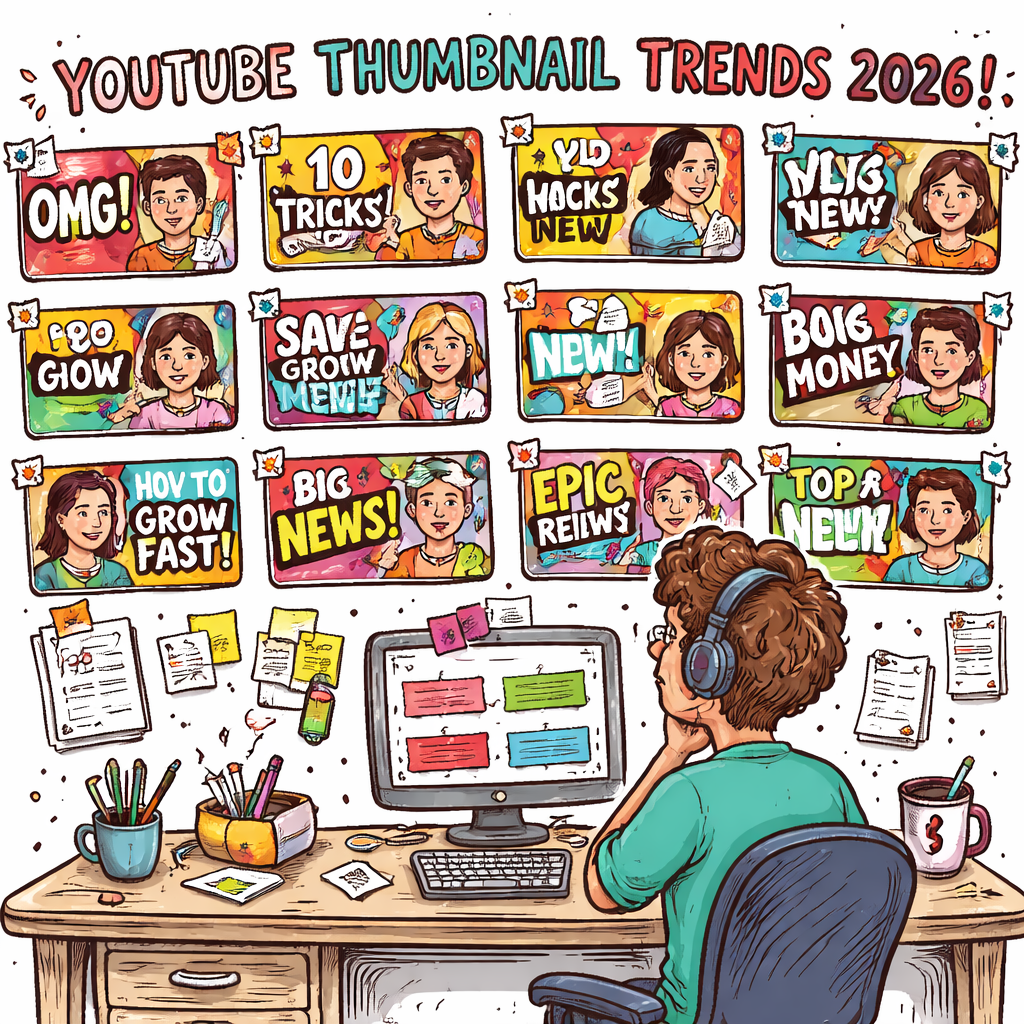
Grab a list of the top‑performing videos in your niche. Pull the thumbnails into a spreadsheet. Look for patterns: Do you see a big face? Is the text bold and short? Does the layout split the screen?
Tip: Most creators stick to a clear visual hierarchy. That means the eye first lands on the face or main object, then reads the big text, then notices the background details. If you spot that pattern, you’ve found a winning formula.
Next, rank each pattern by how often it shows up. Our research found that 67% of the trends focus on layout, while only a third mention a dominant color. That tells you structure beats color every time.
Once you have your top three layouts, test them. Use a simple A/B test on a few videos and watch the click‑through rate (CTR) move. If one layout lifts CTR by even a couple of points, double down.
Need a fast way to pull competitor thumbnails and see the data side‑by‑side? The fastest way to unf*ck your YouTube Channel lets you filter by niche, pull the most viral thumbnails, and compare the layout elements in seconds.
Finally, log your findings in a quick cheat sheet. List the layout type, the text style, and the emotion the image conveys. Keep it short – you’ll refer to it every time you design a new thumbnail.
Remember, research is a habit, not a one‑off task. Do it every month, swap out stale layouts, and stay ahead of the curve.
Step 2: Choose Color Palettes and Typography
Colors and fonts are the silent persuaders behind every click. You might think hue is king, but our research shows layout beats color 67% of the time. Still, the right palette can make a face pop and a headline shout.
Pick a Core Palette
Start with one dominant shade and one accent. Look at the top‑performing thumbnails in your niche and ask: what mood does the main color set? Is it bold, calm, or playful? Grab a few winners, copy the hex codes, and stick to them.
Pro tip: Use color psychology basics to guide you. Warm reds grab attention fast, while cool blues feel trustworthy. A quick read on AI‑Thumbnail Tool’s guide breaks down which hues work best for different niches.AI‑Thumbnail Tool’s color guide
Once you’ve locked the colors, test them. Swap the background hue on a single thumbnail and watch the CTR shift. If it climbs a point or two, you’ve found a winner.
Now onto the typeface. Your font needs to be readable at a glance, even on a phone screen. Stick to bold, sans‑serif styles – they scream clarity.
Choose a Font That Cuts Through
Pick one primary font and one secondary for sub‑text. Keep the primary big and thick; the secondary can be lighter but still legible. Avoid script fonts unless your brand is truly hand‑crafted.
Approachable Design lists the top YouTube fonts and why they work. Fonts like Oswald, Montserrat, and Poppins are all‑around winners that stay sharp on tiny screens.Approachable Design’s font guide
Apply the same hierarchy you used for layout: big face, big text, then the rest. Test two fonts side by side in an A/B run. The one that lifts your click‑through rate even a sliver is the one to lock in.
Wrap it up: a tight color pair + a clean font combo gives your thumbnail the instant impact you need to rise above the noise.
Step 3: Add Motion and Branding Elements
Static thumbnails feel flat. Adding a tiny motion cue or a brand splash can make your image pop like a neon sign in a dark feed.
Why motion matters
Even a subtle animated overlay—think a blinking arrow or a quick zoom—tells the eye to stop. YouTube’s own A/B testing lets creators compare a still frame vs. a short loop. The moving version usually wins a few extra clicks.
That’s why many of the top‑performing YouTube thumbnail design trends 2024 sprinkle motion into the mix. It’s not about a full‑blown video; a 2‑second GIF loop does the trick.
Step‑by‑step motion add‑on
1. Pick a single element that can move without breaking readability. A logo, a burst, or a highlight line works.
2. Keep the loop under three seconds. Anything longer looks like a mini‑ad and can get muted by the platform.
3. Export as a high‑quality PNG for the static version and as a short MP4‑style GIF for the animated version. YouTube still only accepts static images, so you’ll swap the animated version into the thumbnail preview tool that some third‑party editors offer.
4. Test the two versions side by side in YouTube Studio’s experiment mode. Watch the CTR lift—usually a point or two if the motion feels natural.
Branding that sticks
Your brand logo should sit in the same corner on every thumbnail. Use the exact same color, size, and opacity. Consistency builds instant recognition; viewers learn to trust the thumbnail before they even read the title.
Choose a thin border or a faint shadow that matches your channel’s color palette. That tiny cue ties the whole visual system together.
Need a quick cheat sheet for the best practices? Check out this thumbnail best practices guide. It walks you through resolution, contrast, and the exact specs you need to keep your motion clean.
Bottom line: a dash of motion + a solid brand mark turns a bland picture into a click magnet. Try it on your next upload and watch the numbers speak.
Step 4: Compare Tools and Templates
Now that you know which layouts win, it’s time to size up the tools that actually help you build them. Pick a tool that matches the trend you’re chasing, then test a quick version before you lock it in.
First, list the three styles you want to try – face‑over‑text, split‑screen comparison, or a motion‑boosted thumbnail. Next, grab a free trial of a tool that supports each style. Create a mockup in under five minutes. Export a static PNG and a short GIF if you plan to add motion. Then run a tiny A/B test in YouTube Studio. If the CTR jumps even a point, you’ve found a winner.
Here’s a quick cheat sheet you can copy into a spreadsheet:
| Tool / Template | Key Feature | Fit for Trend |
|---|---|---|
| Canva | Drag‑drop editor, hundreds of ready‑made layouts | Ideal for Face + Bold Text overlays |
| Adobe Express | AI suggestions, huge asset library | Great for Comparison Layouts |
| Video Tap | AI frame picker, easy GIF export | Perfect for adding subtle motion cues |
Notice how each tool lines up with a specific trend. That way you don’t waste time fiddling with a platform that can’t do what you need.
Need a deeper dive on template ideas? Check out Velio: Nate Black for a quick walk‑through of how to match templates to the trends we just covered.
Once you’ve narrowed it down, set a simple checklist: does the tool let you keep your brand logo in the same corner? Can you change the background hue in seconds? Does it export the exact 1280×720 size YouTube wants? If the answer is yes, you’re good to go.
Finally, give the backlink a quick look. The AI Video Editing Tutorial: A Simple Guide for Business Owners shows how easy it is to add simple edits with AI – a handy reminder if you decide to animate a logo or add a quick highlight line.
Stick to these steps, compare side by side, and you’ll stop guessing and start clicking.
Step 5: Optimize for Mobile and Different Platforms
Most viewers catch your video on a phone while scrolling. If they can’t read the text or spot the face, they’ll scroll past. That’s why you need a mobile‑first thumbnail.
First, grab the official YouTube size guide. The safe zone sits at about 128 × 72 pixels – that’s the smallest preview you’ll ever see. Anything smaller gets blurry or cut off.
Actionable step: open your design file, zoom to 128 × 72, and check three things. One, the main image (usually a face) stays in the center. Two, the biggest words are still legible. Three, the brand logo sits in the same corner without touching the edge.
Next, think about platform quirks. YouTube Shorts uses a vertical 1080 × 1920 canvas, but the thumbnail still shows up as a square in the feed. A quick hack is to keep the core visual (face, bold text) inside a central square, then add extra flair above or below for the full‑height version.
Hypothetical example: you run a tech review channel. You swap a tiny “Review” tag for a big, bright “UNBOXED”. On mobile, the new tag stays crisp, and your CTR nudges up a couple of points.
Tip: test on both iOS and Android preview modes. Some fonts render slightly thinner on Android, so bump the weight if needed. Keep contrast high – bright text on a dark background works everywhere.
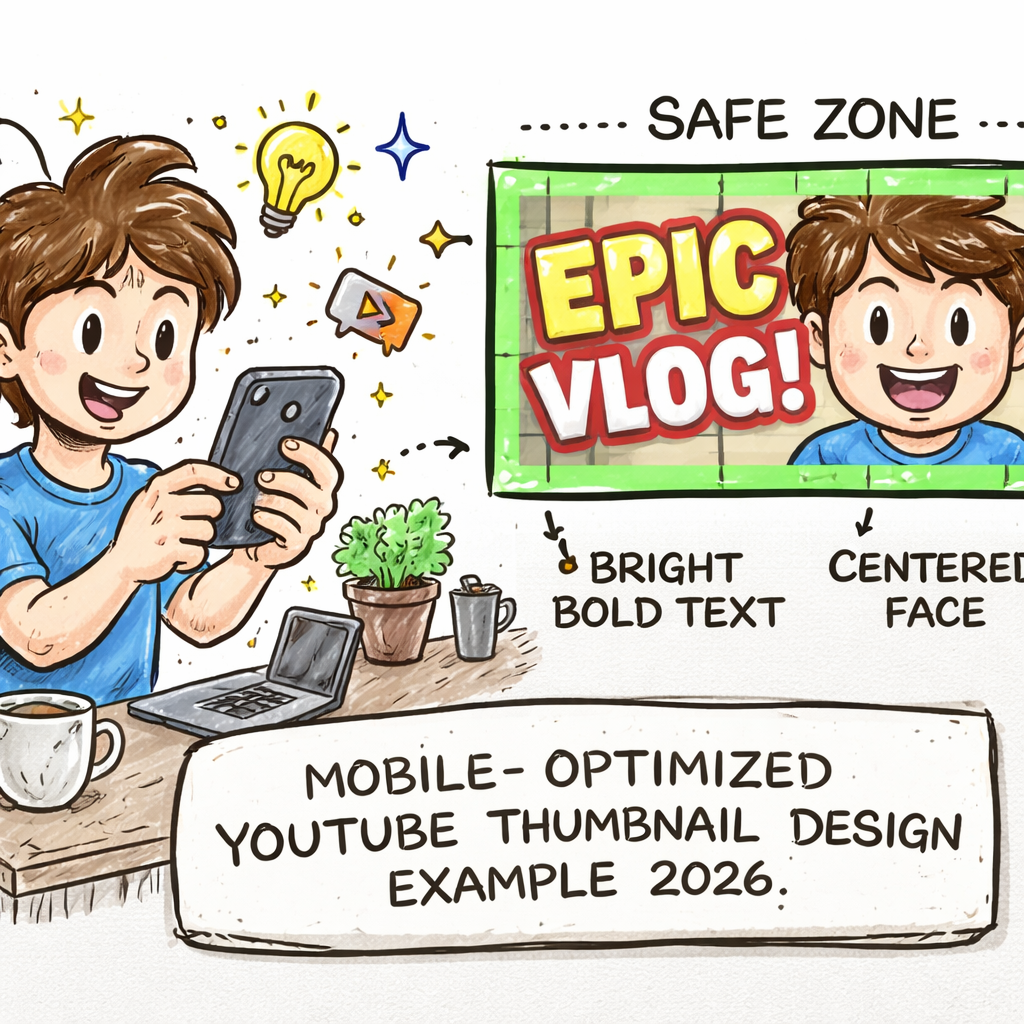
Finally, build a quick checklist. Does the thumbnail meet the 128 × 72 safe zone? Is the main subject centered? Is the text big enough for a thumb‑sized screen? Is the logo in the same spot as every other video? If you answer yes, you’re good to publish.
Remember, 67% of the top trends focus on layout, not color. So a clean, mobile‑friendly layout beats a fancy palette every time.
Conclusion
You’ve seen how the winning YouTube thumbnail design trends 2024 boil down to pure layout power. Big faces, bold text, clean split-screen beats any fancy color splash.
Remember the 128 × 72 safe zone. If the main image stays centered, the words stay legible on a thumb-size screen, you’re set.
Test a couple of layouts, watch the CTR nudge up, then lock the one that moves the needle. A quick checklist – safe zone, centered subject, consistent logo – saves you from dumb mistakes.
Feeling stuck? Platforms like Velio let you pull proven thumbnail formulas from millions of videos, so you skip the guesswork and jump straight to clicks.
Bottom line: focus on structure, keep it mobile-ready, and let data drive your tweaks. Your next upload can start racking views today.
FAQ
What layout works best for a thumbnail?
Most creators find a big face or a bold text block pulls the eye first. Keep the main image centered and make the words big enough to read on a phone. Test a split‑screen or face‑plus‑text layout, then watch the click‑through rate move. If the CTR nudges up, stick with that pattern.
Do I really need to worry about colors?
Colors help, but they’re not the star. Research shows only a third of trends talk about a dominant hue, while two‑thirds focus on layout. Pick a simple palette – one main shade and one accent – and let the structure do the heavy lifting. Change the background hue in a test and see if the numbers shift.
How big should the text be?
The text must stay legible at 128 × 72 pixels – the smallest preview you’ll ever see. Use a bold, sans‑serif font, and keep the headline under four words. If you can read it on a thumb‑size screen without squinting, you’re good. A quick zoom‑in test in your design tool saves headaches later.
Is motion worth adding?
A tiny animated cue, like a blinking arrow or a quick zoom, can add a few extra clicks. Keep the loop under three seconds and export as a short MP4‑style GIF. Swap the static and animated versions in YouTube Studio’s experiment mode and let the data tell you if it helps.
Should I use the same logo placement every time?
Yes. Put the logo in the same corner, same size, same opacity. Consistency builds instant brand recall – viewers learn to trust the thumbnail before they read the title. A faint border that matches your brand color ties the whole look together without stealing focus.
How often should I refresh my thumbnail designs?
Treat research as a habit, not a one‑off task. Pull the top‑performing videos in your niche each month, note the layout patterns, and swap out any stale formulas. Updating every 30‑45 days keeps you ahead of the curve and stops your click‑through rate from flat‑lining.