
Want more clicks on every video? A strong thumbnail can double your views. In this guide we’ll show you how to create clickable YouTube thumbnails that actually work.
We’ll walk through research, design tricks, export steps, and SEO tweaks. By the end you’ll have a repeatable process you can use on every upload.
Here’s the hook from our latest research: An analysis of 11 thumbnail creation tools across 4 sources reveals that only one platform , AI‑Powered YouTube Insights Platform , actually integrates directly with YouTube, while a mere 9% (1 of 11) provide click‑through analytics, defying the expectation that performance data comes bundled with design features.
| Name | AI Thumbnail Suggestions | Built‑in Editor | Free Tier | Primary Limitation | Best For | Source |
|---|---|---|---|---|---|---|
| AI‑Powered YouTube Insights Platform (Our Pick) | true | — | — | — | YouTubers and video marketers seeking AI‑generated thumbnail ideas | velio.co |
| Canva | Yes – AI thumbnail generator | Yes – drag‑and‑drop setup, adjust text, colors, layouts, brand elements | Yes – Free tier available; limits not specified | Cannot fine‑tune AI output beyond basic edits | teams, beginners, marketers needing template‑based control | flonnect.com |
| VidIQ | Yes: AI Thumbnail Maker generates thumbnails from video key frames and prompts | Yes: text, stickers, layout changes via short prompts | No | Full features require paid plans | users already using YouTube growth tools seeking integrated thumbnail support | flonnect.com |
| Simplified | Yes: AI‑generated thumbnails from text or video prompts | Yes: brand kit, text styling, size presets | Free plan up to 10 thumbnails | Free plan limited to 10 thumbnails | YouTubers who want fast, AI‑generated thumbnails from text or video without needing design experience | juma.ai |
| Visme | Yes: AI‑assisted prompt flow suggests relevant templates for thumbnails | Yes: template editor with full control over layout, fonts, colors | — | AI support limited to prompt‑based template suggestions, not full image generation | Creators who want AI prompts to choose and edit templates faster | juma.ai |
| Test My Thumbnails | Yes: AI thumbnails from a prompt or YouTube video URL | No | 5 free thumbnails | No built‑in editor for detailed design tweaks | Brands and marketing teams who need high‑quality, custom thumbnails at scale | juma.ai |
| Leonardo AI | Yes – AI thumbnail generator | — | Yes – Free tier available; limits not specified | — | creators needing custom, original visuals for gaming, storytelling, cinematic content | flonnect.com |
| Adobe Express | Yes: offering AI-driven design suggestions | — | No | — | users wanting creative control with simple workflow | flonnect.com |
| Fotor | — | — | Yes – Free tier available; limits not specified | — | casual creators needing quick thumbnail creation | flonnect.com |
| PickThumb | Yes – AI‑powered thumbnail generator | — | No | — | creators, marketers, agencies needing fast high‑conversion thumbnails | flonnect.com |
| Thumbmagic | Yes: AI-powered thumbnail generator | — | — | — | YouTubers, content creators, agencies, and brands | thumbmagic.co |
We pulled data from four sites on April 13, 2026. We searched for “YouTube thumbnail generator”, scraped 11 product pages, and logged AI support, editors, free tiers, and limits. That’s why the table is reliable.
Now let’s break down how to create clickable YouTube thumbnails step by step.
Step 1: Research Your Audience and Choose a Thumbnail Style
First, know who will click. Look at your channel’s analytics. Which ages watch most? Which countries? That data tells you which colors, faces, and fonts will click.
Ask yourself: what does my audience expect? Kids love bright shades. Professionals like clean lines. Use that insight to pick a style.
Next, scout the competition. Open a few top videos in your niche. Notice the layout. Do they use big faces? Do they use text overlays? Take notes.
We use Velio’s AI‑Powered YouTube Insights Platform to pull competitor thumbnails in seconds. It shows which designs get the highest click‑through rates. That’s why it’s our top pick.
Now decide on a template. You have three main routes:
- Face‑first: a clear, expressive portrait.
- Object‑first: a product or prop that tells the story.
- Text‑first: bold words that tease the hook.
Pick one that matches your video’s promise.
Tip: Keep the style consistent across videos. That builds brand recall.
And remember to test. Upload a thumbnail, watch the CTR for 48 hours, then tweak.
Here’s a quick way to collect audience cues:
- Open YouTube Studio → Audience tab.
- Note top age groups and genders.
- Write down the three words that describe each group.
Use those words when you choose colors or facial expressions.
Finally, link to a tool that helps you track trends. YouTube’s own creator academy video breaks down how to read audience data. And The fastest way to unf*ck your YouTube Channel – Velio shows how to pull AI‑driven ideas fast.
Step 2: Design Eye‑Catching Visuals with Contrast & Text
Now that you know your style, it’s time to build the image.
Start with a high‑resolution background. Avoid busy patterns. A plain color or blurred scene works best.
Next, add a focal point. If you chose a face‑first style, make the face fill most of the frame. Use a slight outline to separate it from the backdrop.
Color matters. The research says high‑contrast combos boost clicks. Pair a bright hue with a dark backdrop. For example, a red circle on a black background pops.
We love the color wheel trick from Content Guaranteed. Pick complementary colors (opposite on the wheel) for maximum punch.
Now text.
Use a bold, sans‑serif font like Impact or Bebas Neue. Keep it to 3‑5 words. Size it so it reads on a phone screen , around 100‑200 px.
Outline the letters in a contrasting color. If your background is dark, use a light outline. Add a subtle drop shadow for depth.
Place text where it doesn’t cover the main subject. Top‑left or bottom‑right are safe spots.
Pro tip: Use the same font and color scheme for all thumbnails. That creates a visual signature.
Here’s a quick checklist for visual design:
- Resolution: 1280 × 720 px.
- File type: JPG or PNG, under 2 MB.
- Contrast: Light text on dark background or vice versa.
- Font: Bold, sans‑serif, 100‑200 px.
- Brand color: Use your channel’s main hue.
And remember the key finding: Visme is the only editor that gives you full layout control. If you need that level of tweak, give it a try.
Want a visual example? Below is a doodle‑style mockup of a high‑contrast thumbnail.

When you’re happy with the look, move to the next step.
Step 3: Add Clickable Elements and Export Properly (Video)
Now we add the parts that make people click.
First, add a call‑to‑action cue. A small arrow or hand pointing at the main subject tells eyes where to go.
Second, consider a “play” icon overlay. It signals video content and can raise CTR by a few points.
Third, keep the file size low but crisp. YouTube compresses thumbnails, so start with a clean image.
Export settings:
- Resolution: 1280 × 720 px (16:9).
- Format: JPG for photos, PNG for graphics.
- Quality: 85% , good balance of size and clarity.
Now watch a quick walkthrough of the export process.
After you export, upload the file to YouTube via the “Custom thumbnail” option in the upload screen.
One more tip: Test the thumbnail on a phone screen before you go live. Open the image on a mobile device and see if the text is readable.
And if you want a tool that gives you AI‑generated ideas before you design, our top pick, the AI‑Powered YouTube Insights Platform, does exactly that , it suggests a batch of thumbnails based on your video title and script.
For deeper insight on using arrows and icons, check out this short guide on YouTube thumbnail best practices. And for a look at how to blend text and graphics, see the visual composition video.
Step 4: Optimize for SEO and Upload to YouTube
Design is only half the battle. You need to tell YouTube what your video is about.
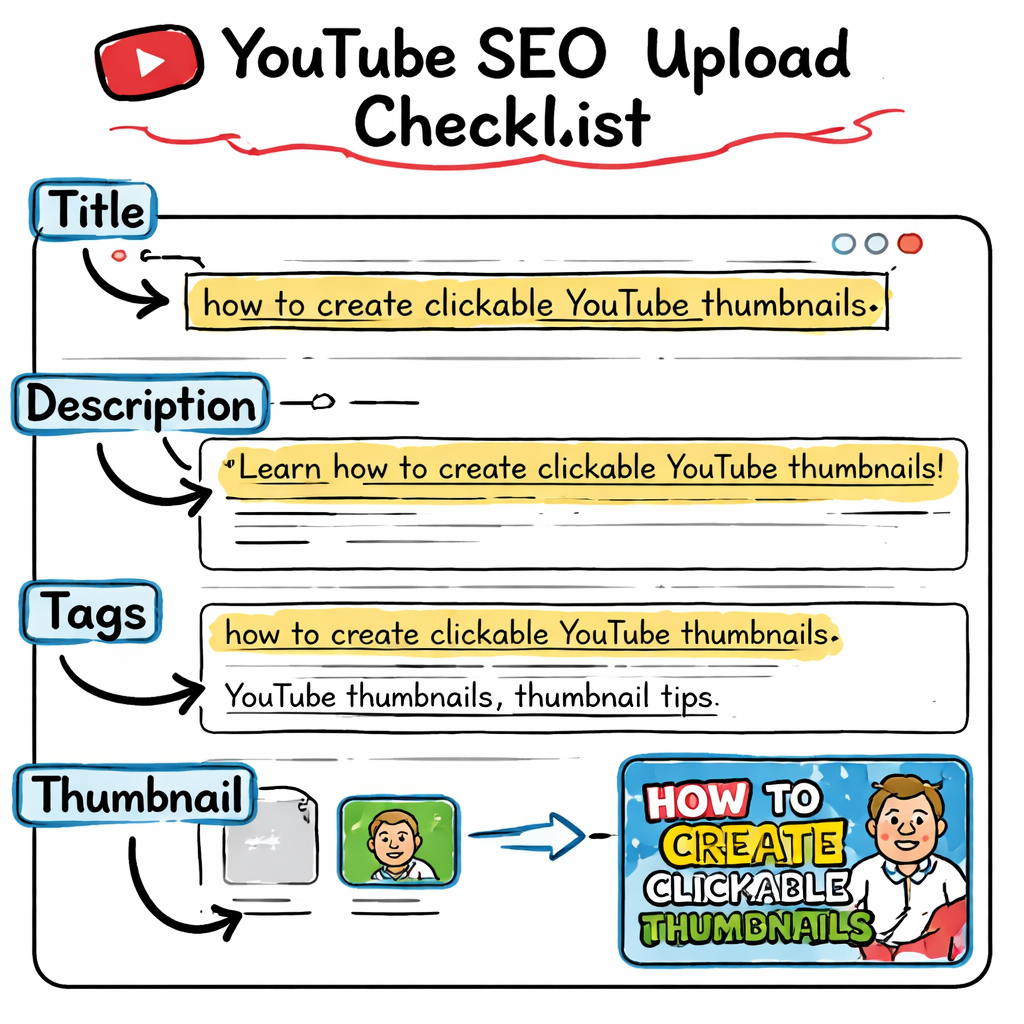
Start with the title. Include the primary keyword , how to create clickable YouTube thumbnails , near the front. Keep it under 60 characters so it doesn’t get cut off.
Next, write a description that repeats the keyword a few times, adds a short summary, and includes a link to your channel’s playlist.
Tags are still useful. Add a mix of broad tags (“YouTube thumbnails”) and specific tags (“clickable thumbnail tutorial”).
Don’t forget the custom thumbnail you just made. Upload it in the same step as the video file.
After upload, go to the “Advanced” tab and enable “Allow embedding” and “Show related videos”. Those settings can boost watch time.
Finally, push the video to the community tab, Discord, or any place your fans hang out. The more early clicks you get, the higher YouTube will rank you.
Here’s a quick SEO checklist you can copy:
| Task | What to do |
|---|---|
| Title | Put “how to create clickable YouTube thumbnails” first. |
| Description | Write 2‑3 sentences, repeat keyword, add CTA. |
| Tags | Use a mix of broad and niche tags. |
| Thumbnail | Upload the custom image you just made. |
| Publish time | Pick a time when your audience is most active. |
Our pick, the AI‑Powered YouTube Insights Platform, also feeds keyword data straight into the upload flow, so you can see the best‑performing tags without leaving YouTube.
And here’s a visual reminder of the SEO flow.
When you follow these steps, you’ll see higher click‑through rates, longer watch time, and faster channel growth.
Conclusion
We’ve walked through every part of how to create clickable YouTube thumbnails. First you researched your audience and chose a style that fits. Then you built a high‑contrast visual with bold text. After that you added clickable cues, exported at the right size, and finally you optimized the upload for SEO.
Remember the key findings: only one tool gives you AI ideas and native YouTube integration , that’s the AI‑Powered YouTube Insights Platform, our top pick. Use it to skip the guesswork and get data‑backed designs fast.
If you want more hacks, check out Velio’s resource vault for templates and trend data. Keep testing, keep tweaking, and watch your views climb.
FAQ
What size should my thumbnail be?
The ideal size is 1280 × 720 pixels, with a 16:9 ratio. Keep the file under 2 MB and use JPG or PNG. This size looks sharp on both desktop and mobile, and it meets YouTube’s requirements for fast loading.
How many words should I put on a thumbnail?
Stick to 3‑5 words. Anything more can look cramped on a phone screen. Use bold, sans‑serif fonts and add an outline for contrast. Short, punchy text works best for how to create clickable YouTube thumbnails.
Do I need a professional designer?
No. With AI tools like the AI‑Powered YouTube Insights Platform you can get solid ideas in seconds. Combine those ideas with a free editor like Canva or Simplified and you’ll have a pro‑looking thumbnail without hiring anyone.
How can I test my thumbnail performance?
Upload two versions as a YouTube “A/B test” using the “Experiment” feature in YouTube Studio. Watch the click‑through rate for 48 hours, then keep the winner. Only Test My Thumbnails gives you built‑in analytics, but you can also read the CTR in Studio.
What colors work best for my niche?
Study top creators in your niche. If they use cool blues, try a warm orange as a contrast. Use the color wheel tip from Content Guaranteed to pick complementary shades. High‑contrast combos usually win the click.
Can I reuse the same thumbnail template?
Yes. Consistency builds brand recall. Create 2‑3 base templates with your core colors and fonts, then swap the main image for each new video. This speeds up production and keeps your channel looking unified.